Happy Monday, creative family, and welcome to Logiaweb Weekly.
This week’s design intelligence briefing reveals:
🧪 What I'm Building: Behind the Scenes
🚨 Big News: Figma's AI canvas that kills tool switching forever
🤖 Design Inspiration: Hollywood level AI videos with the exact prompts
🛠️ Tutorial of the Week: How to turn slides into full video courses without refilming
💡 Prompt of the Week: Claude Code website
⚙️ AI Tool of the Week: Anything AI. It can build an entire app, front & back end

WHAT I’M BUILDING
Behind the Scenes
This week felt a bit hectic. I spent a lot of time in transit, with almost three full days on planes. Not ideal for productivity, but perfect for reflection. It gave me space to process everything from last week, especially all the lessons and insights I picked up around content, business & AI.
I’m now settled in Cape Town for the next two months, and ready to lock in again. Back to a normal rhythm: posting Reels consistently, and jumping back on prospect calls as we look for our next clients for the studio this month.
The pace is about to pick up. The next couple of months will be intense, but that’s exactly what I’m excited about. Clear focus, clear goals, and a lot to build.

BIG NEWS
Figma Acquired A Startup & Dropped an AI Canvas That Changes How We Work
Figma just made two moves that make me feel like they've been reading our minds. They acquired Weavy, which is a collaborative workspace tool, and launched Figma Weave, an AI powered canvas that's basically rethinking how we move between tools.

What caught my attention
Instead of jumping between Figma, FigJam, and every other tool in your stack, Figma Weave gives you one infinite canvas where you can design, brainstorm, and let AI build prototypes directly from your sketches.
Think of it like FigJam on steroids, but the AI actually understands your rough ideas and turns them into real designs without you leaving the canvas.
I know you're tired of the constant app switching while trying to stay creative. Well, here is your solution.
Why it matters
Figma’s basically saying, "stop breaking your flow."
You sketch something messy, drop in some reference images, write a quick note, and the AI interprets it all to generate actual design components.
No more exporting concepts, opening a new file, starting from scratch. It's all happening in one place, and the AI bridges the gap between your rough thinking and polished output.

The real win
Most of us waste hours just moving between tools. Sketch in FigJam, refine in Figma, prototype somewhere else, document in Notion. With Figma Weave, you're staying in the creative zone while AI handles the translation work.
And with the Weavy acquisition, Figma’s clearly doubling down on making collaboration feel less fragmented and more natural.
This isn't just another AI feature. It's Figma acknowledging that our workflow is messy and building something that actually works with that mess, instead of against it.
If you've ever lost momentum switching between brainstorming and execution, Figma Weave might be exactly what you didn't know you needed.
DESIGN INSPIRATION
AI That Creates Hollywood Level AI Videos
Tool Used: Pika

PROMPT: Cinematic close-up of a man looking directly into the camera in visible shock, eyes wide, pupils dilated, mouth slightly open as if frozen in disbelief. Subtle micro-expressions: shallow breathing, slight jaw tension, minimal head movement. Dramatic low-key lighting with strong contrast, soft rim light outlining the face, dark blurred background. Shallow depth of field, 35mm cinema lens look. Slow, subtle camera push-in. Ultra-realistic skin texture with natural imperfections. Film-grade color, moody cinematic tone, high dynamic range, realistic motion, professional movie scene quality.Tool Used: Fotor

PROMPT: A lone man in a wide-brim hat and long dark trench coat walks slowly toward the camera through a rain-soaked city street at night. Thick steam rises from the ground, swirling around his boots as neon signs glow softly in the blurred background. The atmosphere is dark, moody, and cinematic, with wet pavement reflecting warm orange and cool blue lights. His face remains mostly shadowed, giving him a mysterious, noir-style presence. Shot with shallow depth of field, slow motion movement, and a gritty film-grain texture for a dramatic, high-end cinematic lookTool Used: Higgsfield

PROMPT: Generate a short, realistic video of this person looking directly into the camera with a clearly shocked and surprised expression. The reaction should feel natural and human — widened eyes, raised eyebrows, subtle head movement, and a brief pause as if reacting to unexpected news. Maintain the same facial features, age, hairstyle, and clothing as shown in the reference image. Use soft, cinematic lighting, shallow depth of field, and smooth, realistic motion. Keep the background consistent with the original image and avoid any stylization or exaggerated animation. (attach the reference image with the prompt)TUTORIAL OF THE WEEK
How to turn slides into full video courses without refilming
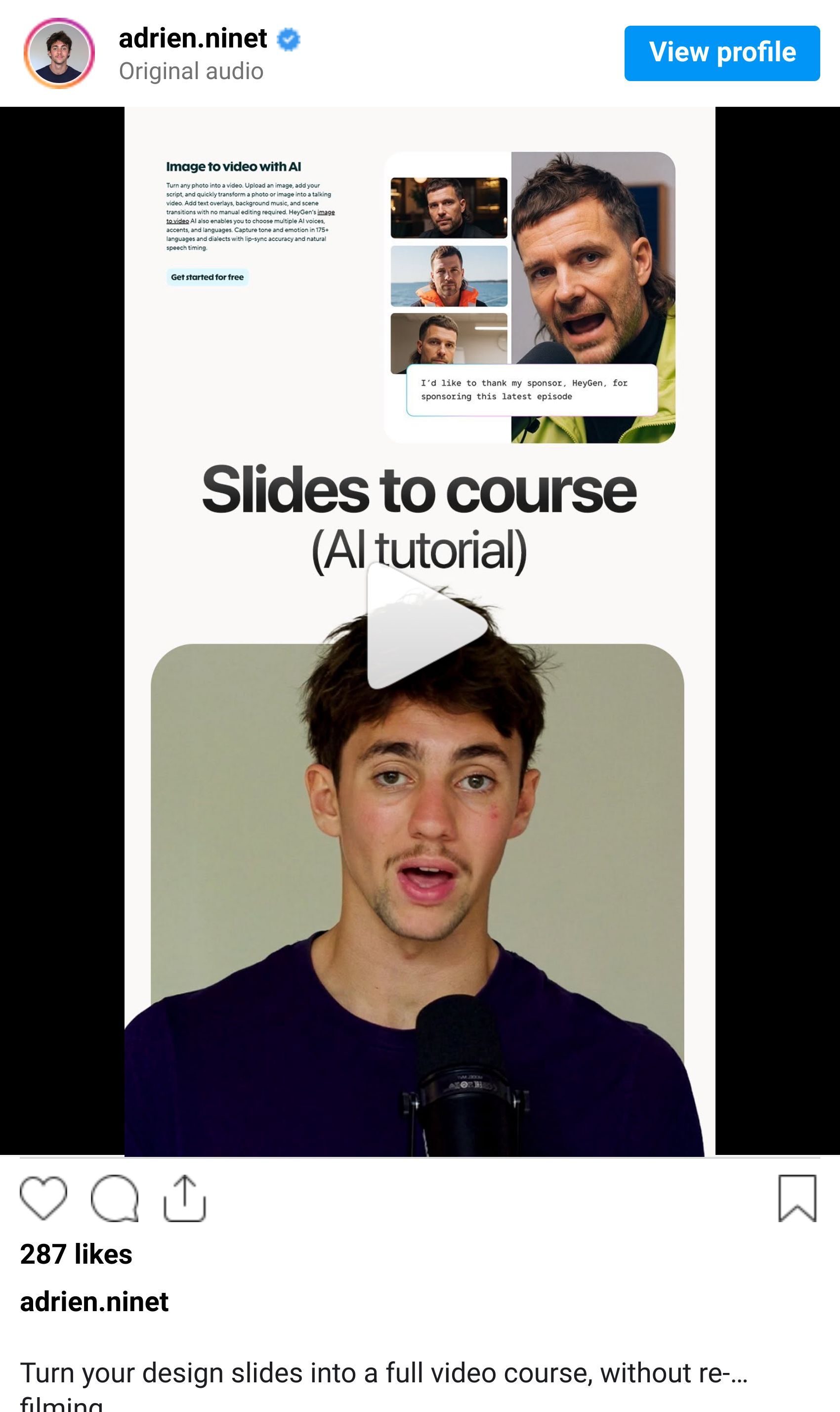
If you've ever thought, "I should turn this into a course" and then immediately closed the tab because of filming, editing, and rerecording, this workflow fixes that.
This is how you turn simple design slides into a polished video course that scales, updates easily, and doesn't require you to be on camera every time.
Step 1: Create Your Reusable Avatar
Go to HeyGen and create a custom avatar.
Record a short video of yourself (or upload an existing one).
This avatar becomes your "digital presenter" for every lesson.
Think of it as a one time setup that replaces endless refilming.

Step 2: Start a New Lesson Project
Create a new project in HeyGen.
Upload your lesson slides (Keynote, PowerPoint, or PDF’s all work).
Paste in your script for the lesson.
TIP: You don't need perfect scripts. Clean, clear explanations beat over produced fluff every time.

Step 3: Let AI Handle the Layout
This is where it clicks for designers:
Adjust the layout with simple controls.
Reposition your avatar, slides, and text visually.
Add captions with one click.
You're designing the lesson, not wrestling with a timeline.

Step 4: Translate Once, Teach Everywhere
Want more reach without more work?
Use HeyGen’s translation feature.
Instantly convert your lesson into multiple languages.
Lip sync stays natural, and your voice stays consistent.
With this you get access to a new audeince with the same content.

Step 5: Export and Publish
Export the final video.
Upload it to your course platform.
Repeat for the next lesson using the same avatar.
What used to take days now takes one focused session. Try HeyGen or yourself.

PROMPT OF THE WEEK

PROMPT: Create a visually striking, modern website hero section for an automotive performance website that showcases top-performing cars and their key stats. Design a full-width hero with a clean, premium aesthetic, strong visual hierarchy, and generous white space. Feature high-performance cars with large imagery, each paired with concise performance metrics (top speed, 0–60 mph, horsepower, drivetrain). Use bold, modern typography for headlines, subtle gradients or dark luxury tones for the background, and elegant accent colors to highlight stats. Layout should feel dynamic and fast, with card-style stat blocks, smooth hover or motion effects, and a clear primary headline with a short supporting tagline. Include a minimal navigation and a strong call-to-action button. Prioritize visual polish, readability, and a high-end automotive feel over technical complexity.TOOL OF THE WEEK
Most AI builders only handle the front end. Or just the back end. Anything AI does both, plus your database, user login, and payments. All in one go.
👉 Here’s a demo of Anything AI:
🧠 How I'd use it
I’d use Anything AI to:
Build a custom agent that automatically extracts color palettes and CSS variables from uploaded screenshots.
Create a real time content filler that replaces "Lorem Ipsum" with industry specific text and AI generated imagery.
Develop a client portal that automatically generates design briefs and project timelines based on user input.
💡 Bonus Prompt
Use this prompt in Anything AI to create a website that uses AI to help you create a workflow.

Build a designer-focused AI workflow accelerator that helps web designers plan, design, and launch better websites faster by generating clear step-by-step workflows from idea or client brief to launch, including research, positioning, website structure, copy guidance, visual direction, and AI tool recommendations, tailored to the designer's skill level (beginner, intermediate, advanced), with GPT-5 assisting in breaking down tasks, reducing overwhelm, and improving quality and efficiency, all inside a clean, modern, designer-friendly interface.That’s it for this week, but I want to make each edition even better.
👉 Got 30 seconds?
Fill out this quick survey and tell me what you'd love to see next. Your feedback directly shapes the next drop.
💌 Know a designer who should be using AI smarter?
Forward them this email. Or just send them to logiaweb.com/weekly to join.
See you next Monday,
— Adrien


Adrien Ninet
