
5-Step Website Workflow
Oct 2, 2026 · 12 steps
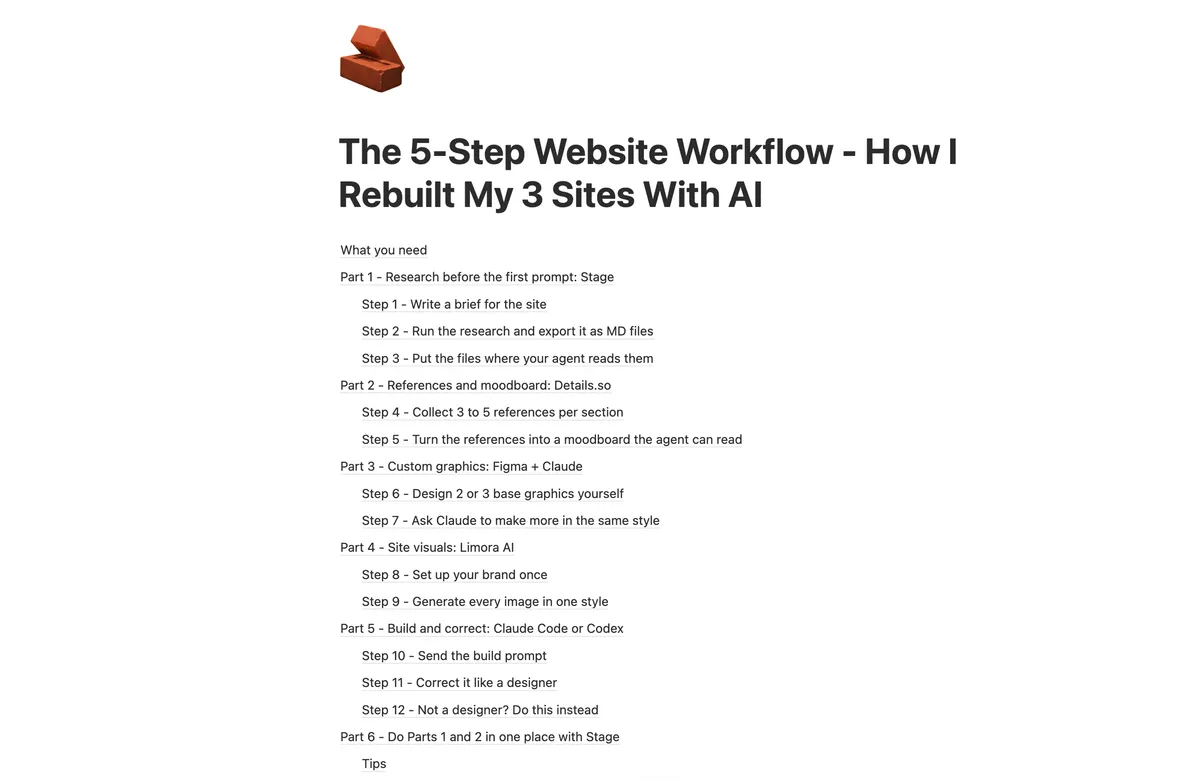
What you need
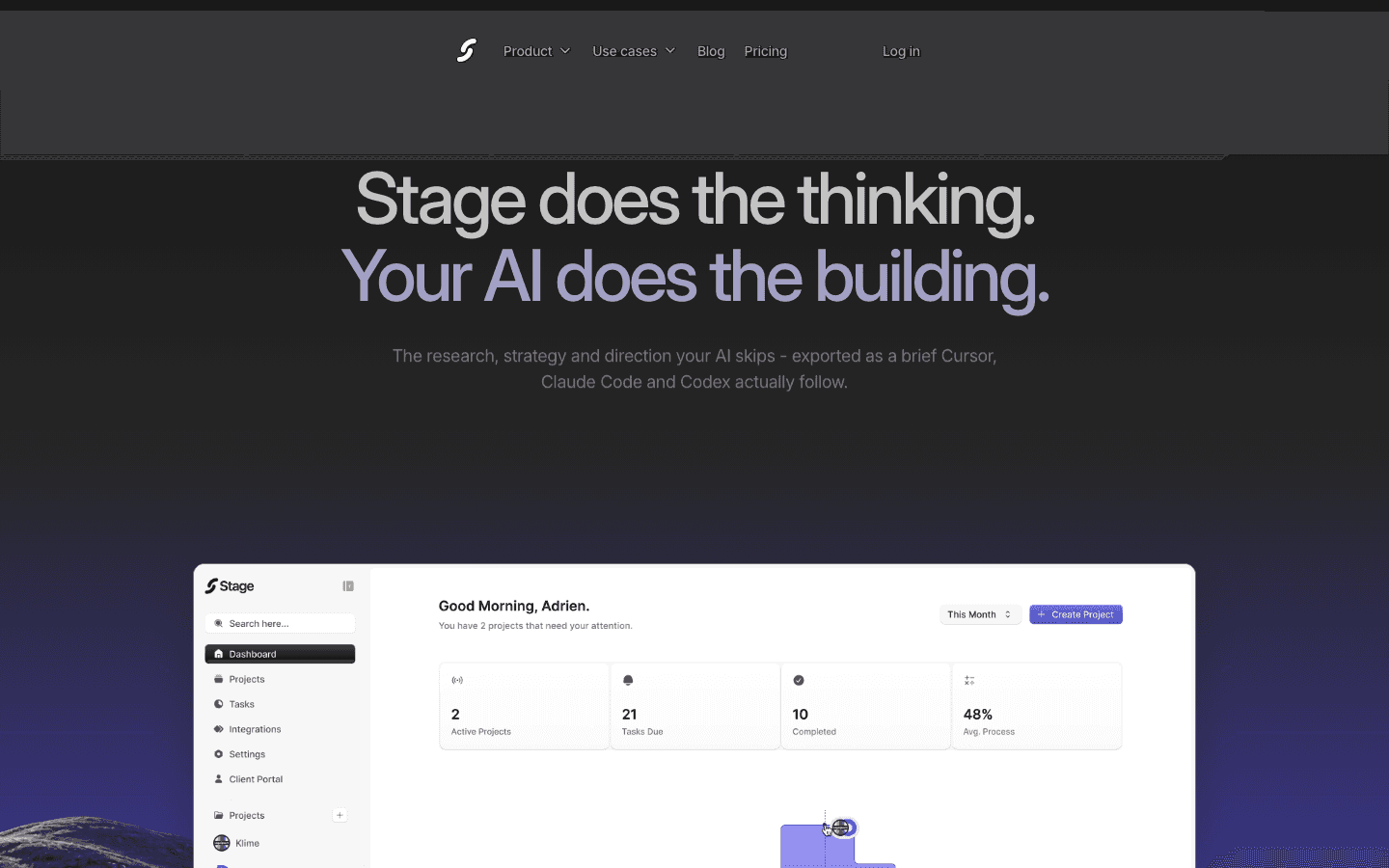
- Stage for the UX and market research before you build. It runs on Mac and comes with a 14-day free trial.
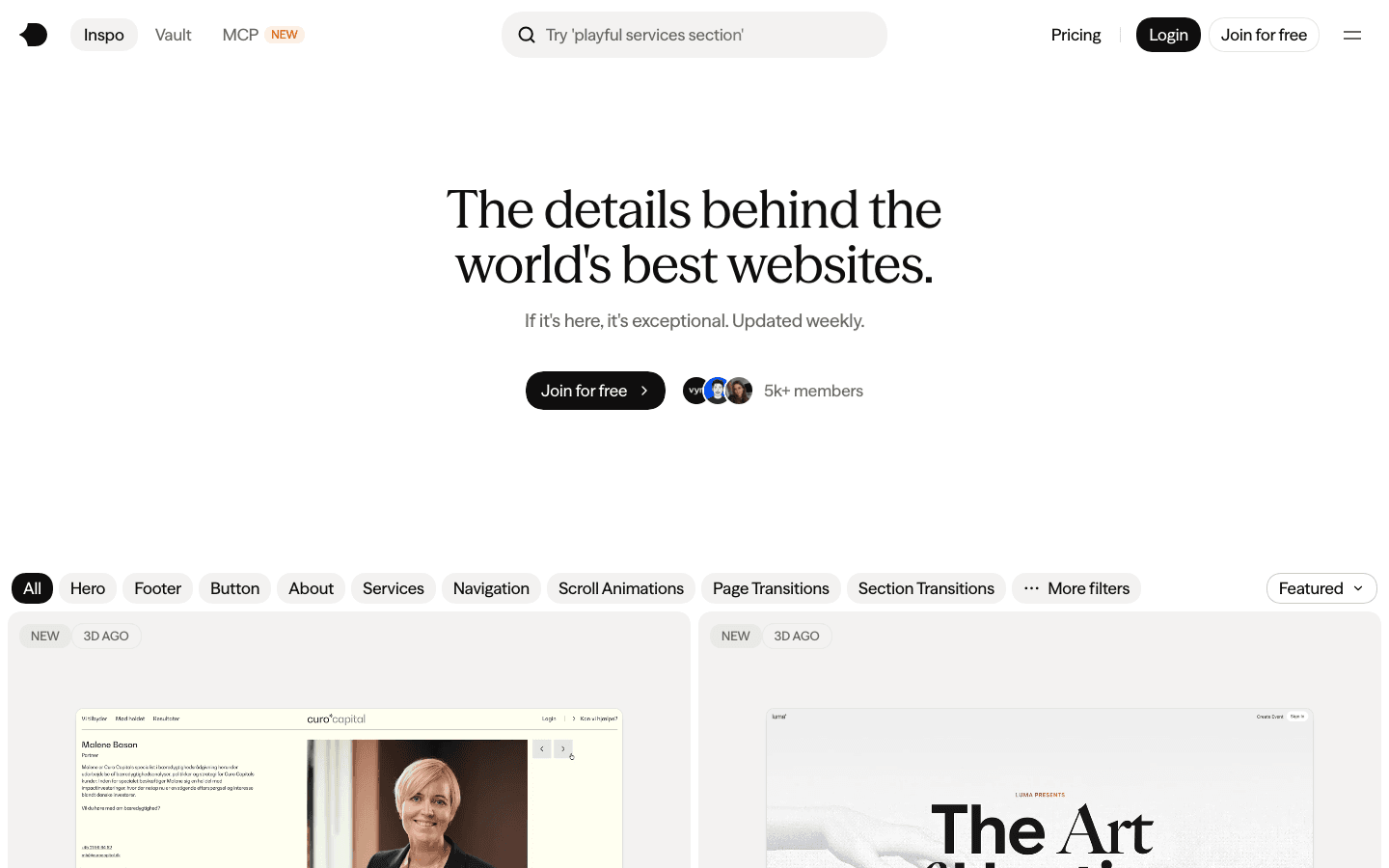
- Details.so for website references. You can browse the latest releases for free, and the full library starts at €9/month.
- Figma for your custom graphics. The free Starter plan is enough for this workflow.
- Limora AI for the images on your site. You can try it for free, with no credit card.
- Claude Code or Codex for the build. Claude Code needs a paid Claude plan, starting with Pro at $20/month. Codex comes with ChatGPT, but the free plan only covers light tasks, so Plus at $20/month is the realistic starting point.
Part 1 - Research before the first prompt: Stage
- 1
Step 1
Write a brief for the site
Before you open any AI tool, write one short paragraph about the site.
Answer three questions: what the product is, who the site is for, and the one thing a visitor should do before they leave.
If you know two or three competitors, name them. They are the fastest way to give the AI context about your market.
Say it out loud. Dictating the brief gives you much more detail than typing it, and the detail is what the research is built on.
- 2
Step 2
Run the research and export it as MD files
I do this step on every site and every product I build. It is the step that changes the result the most.
In Stage, create a website project, paste your brief and run the research. Stage studies your competitors and your market, then turns what it finds into a strategy and a direction for the site.
Then export it. You get a folder of MD files with the research, the strategy, the visual direction and the page structure. These are plain text files that your AI agent can read.
The full Stage walkthrough is in my guide The AI Design Workflow - Research to One-Shot Build.
The AI is not short on skill, it is short on context. A generic site is almost always a site that was built without research.
- 3
Step 3
Put the files where your agent reads them
Create one folder for the site, and put the MD files inside a
docsfolder.At the root of the folder, your agent needs one instruction file. Claude Code reads
CLAUDE.mdand Codex readsAGENTS.md. Stage already adds anagents.mdfile to its export. If you did the research somewhere else, create the file yourself and swap the file names for yours:markdown# [Site name] [One paragraph: what the product is and who the site is for.] Before you write any code, read every file in /docs: - research.md: the market and the competitors - strategy.md: the positioning and what the site has to prove - style.md: the visual direction - structure.md: the pages and their sections Use only the images in /assets/images and the graphics in /assets/graphics. Never use stock photos or placeholder images. Never add a section that is not in structure.md.
Part 2 - References and moodboard: Details.so
- 4
Step 4
Collect 3 to 5 references per section
Do not look for one website to copy. Look for one great example of each section you need, like the hero, the features, the pricing and the footer.
On Details.so, search by section, for example "hero with product video" or "pricing section". Save three to five references for each one.
For every reference, write one line that says why you picked it, like "huge type with a tiny subline" or "the way the sections slide in". That line is what turns a screenshot into a direction.
There is more on this in my guide The Design Inspo Stack - How I Feed AI Good References.
Three to five is the right number. With fewer than three, the AI copies one reference. With more than five, it averages them into something generic.
- 5
Step 5
Turn the references into a moodboard the agent can read
Put the screenshots in a
referencesfolder, with one subfolder per section. Then send this to your agent:PromptLook at every image in /references. Each subfolder is one section of the site. For each section, write down what the references have in common: layout, type scale, spacing, colors and motion. Save it as /docs/moodboard.md, with one heading per section. Under each heading, add the reasons I picked these references: [paste your one-line reasons] Do not write any code yet.
Make the AI explain your references before it designs anything. That is what stops it from falling back to its default layout.
Part 3 - Custom graphics: Figma + Claude
- 6
Step 6
Design 2 or 3 base graphics yourself
Custom graphics are the fastest way to make a site feel like yours. Everyone now installs the same AI design skills, so sites are starting to look alike again. Your own graphics are what break that pattern.
You do not need many. Design two or three simple ones in Figma, like an icon in your style, a shape, a pattern or a small illustration.
Export them as SVG files and put them in
/assets/graphics.Keep them simple. Basic shapes that follow one clear rule, like one stroke width or one corner radius, are the easiest for the AI to extend.
- 7
Step 7
Ask Claude to make more in the same style
When the site needs a new graphic, do not draw it from scratch. Give Claude your base graphics and ask for a new one in the same style.
PromptHere are my custom graphics: /assets/graphics/[file-1].svg and /assets/graphics/[file-2].svg Study the style first: stroke width, corner radius, colors, proportions and level of detail. Then create a new SVG that shows [what the graphic shows], in exactly the same style. Use only the colors that are already in my files. Save it as /assets/graphics/[new-name].svg and show it to me next to the originals.
Check every new graphic next to the originals. If the stroke or the corners drift, point to the exact difference and ask for a fix. Small drifts add up across a whole site.
Part 4 - Site visuals: Limora AI
- 8
Step 8
Set up your brand once
A site needs a lot of images, like the hero, the feature sections, the use cases and the blog covers. Stock photos make it look like every other site, and random AI images do not match each other.
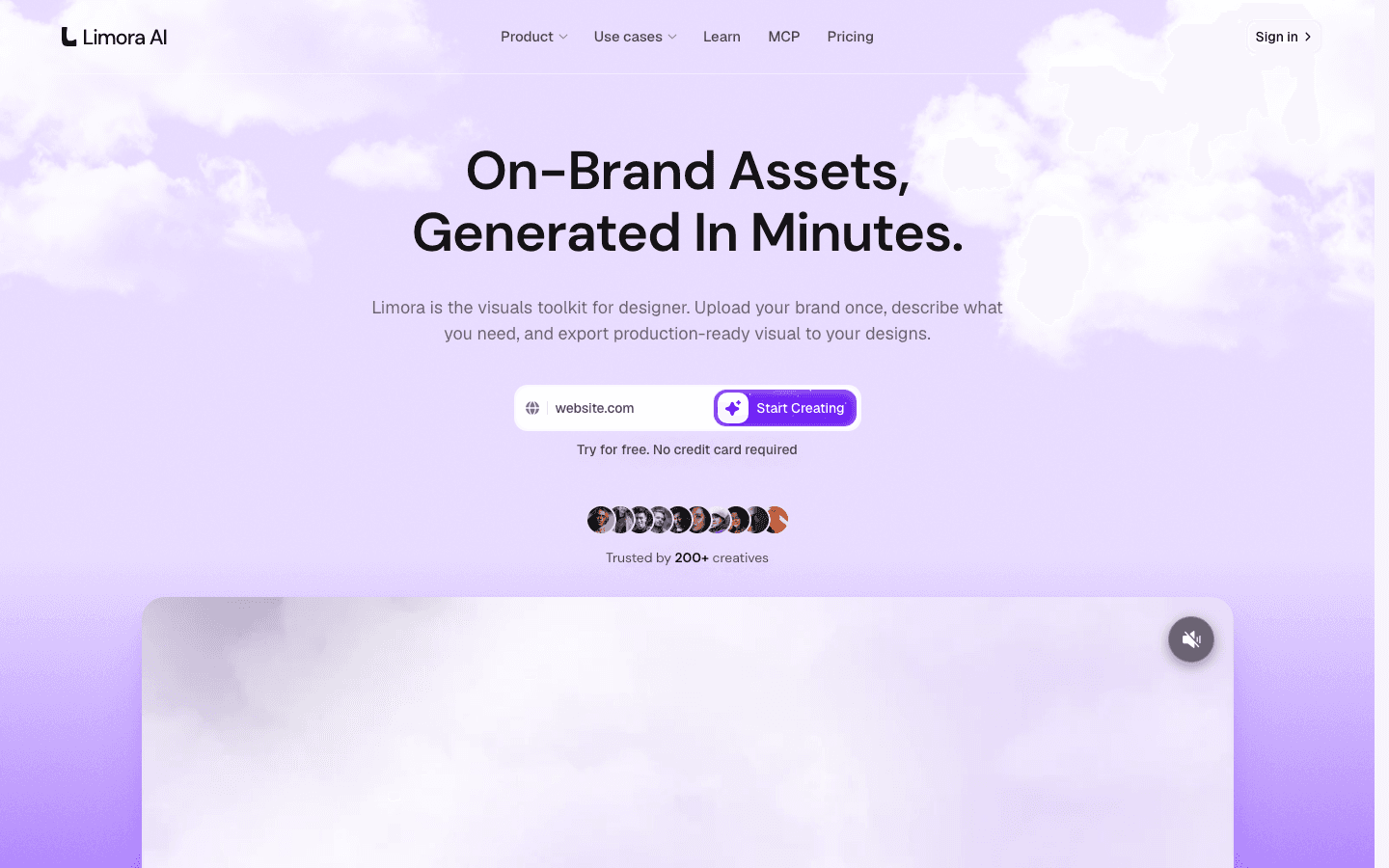
In Limora AI, paste your website address or upload your logo, and it builds your brand kit with your colors and your style. Every image you generate after that starts from it.
- 9
Step 9
Generate every image in one style
Before you generate anything, list every image the site needs, section by section. Then generate them all in one session, so they look like they belong together.
Use one prompt per image, with this structure:
Prompt[What the image shows] for the [section name] section of my website. Format: [16:9 / 4:3 / 1:1]. Keep the same lighting, angle and colors as my brand kit. Leave empty space on the [left / right] for the headline.
Save every image in
/assets/images. Your agent uses them in Part 5.Generate the hero image last. By then you know which style works, and the hero is the image people judge the whole site on.
Part 5 - Build and correct: Claude Code or Codex
- 10
Step 10
Send the build prompt
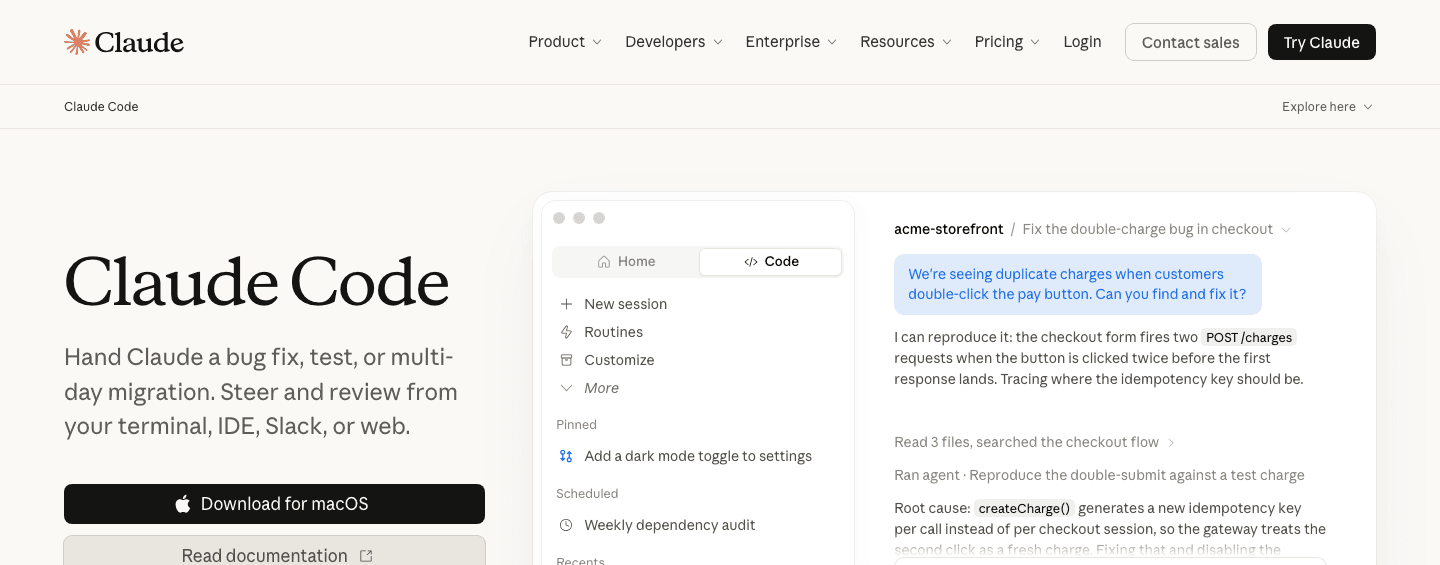
Your folder now has everything the agent needs: the research, the moodboard, your graphics and your images. Open it in Claude Code or Codex and send this:
PromptRead CLAUDE.md and every file in /docs before you start. Build the homepage of [site name] with [Next.js / Astro / plain HTML and CSS]. Follow /docs/structure.md section by section. Follow /docs/moodboard.md for layout, type and spacing. Use only the images in /assets/images and the graphics in /assets/graphics. When you are done, run the site locally and give me the link.
The new models build what you describe. The more precise your preparation is, the closer the first version gets to the site you have in mind.
- 11
Step 11
Correct it like a designer
The first version will be close, but it will not be finished. This is where your design eye matters.
Go through the site section by section and send one correction per message. Name the section, the element and the exact change:
PromptIn the hero section, the headline is too close to the subline. Set the gap to 24px and keep the subline at 60% opacity. Do not change anything else.
The things I correct the most are spacing, the type scale, the hierarchy between headings and the alignment.
If a change is faster to make yourself, make it directly in the code. It gives you more freedom, and the agent picks up your change in the next prompt.
Send one change per message. If you bundle four changes into one prompt, you usually get two fixes and two new problems, with no clean way back.
- 12
Step 12
Not a designer? Do this instead
I did not use any design skill on these three sites, because I can correct the result myself. If you cannot, add a design skill before you build.
A design skill is a set of rules the agent follows when it designs. Anthropic's free frontend-design plugin for Claude Code is a good place to start.
Then correct the site against your references instead of your own taste. Take a screenshot of each section and send it with this prompt:
PromptHere is a screenshot of my [section] section. My references for it are in /references/[section]. List every difference in layout, spacing, type size and color. Then fix the differences one by one, and show me the result after each fix.
Your references are your taste. If you cannot judge a section yourself, compare it to a site you already know is good.
Part 6 - Do Parts 1 and 2 in one place with Stage
Stage does the research and the references for you. Create a website project, and Stage runs the market and UX research, pulls real references from Details.so and builds the moodboard inside the project.
You get Parts 1 and 2 as one export, with the agents.md file already written and ready for Claude Code or Codex.
Stage runs on Mac. Start the 14-day free trial at getstage.co.
Tips
- Keep one folder per site, with docs, references and assets. Your next site starts from it.
- Commit after every version you like, so you can always go back.
- Never use AI-generated sites as references. Use real sites, or you are feeding the AI its own slop.
- Spend more time preparing than prompting. On all three of my sites, the preparation is what made the first build close.