
Build Your Own CRM
Oct 16, 2026 · 11 steps

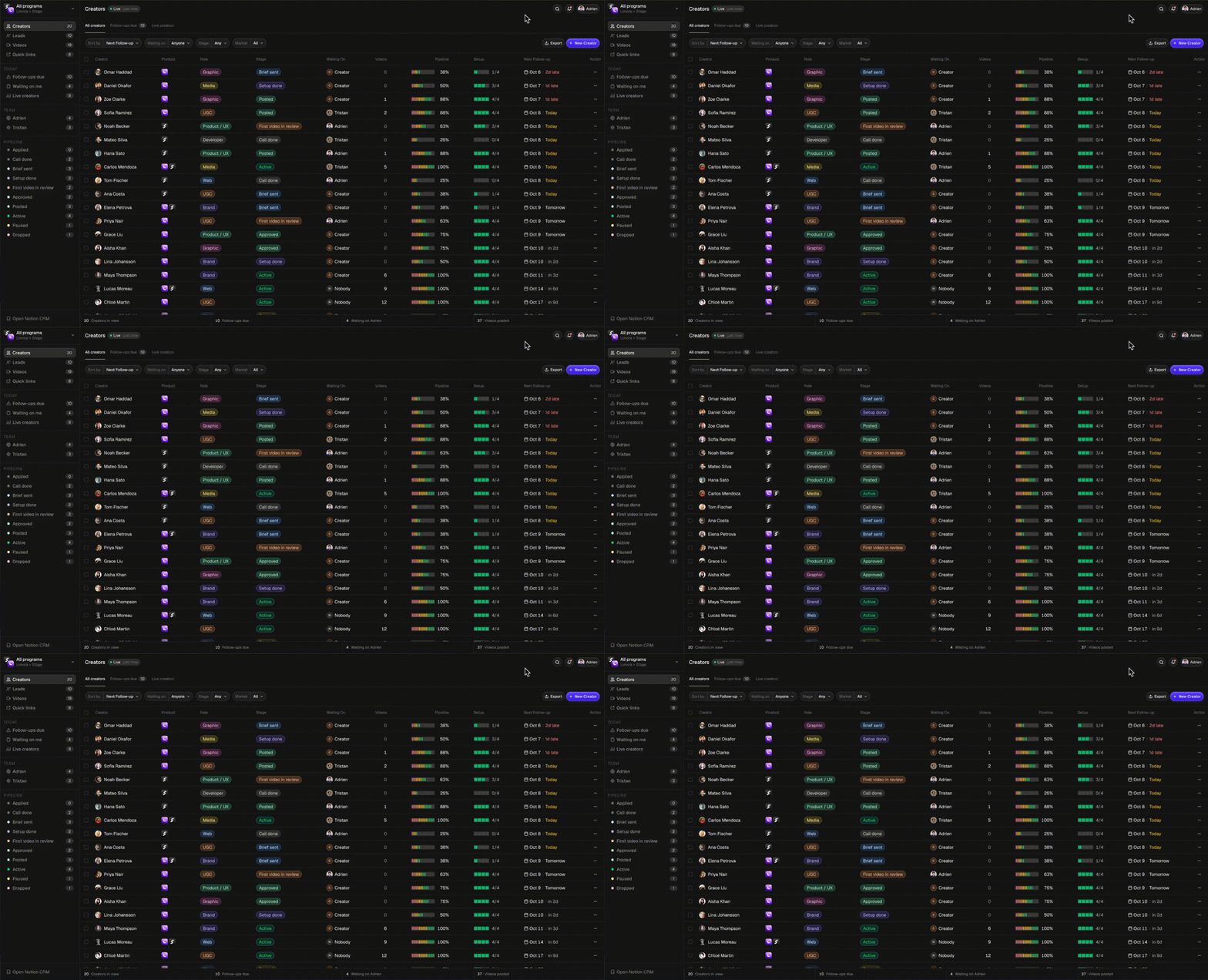
What you need
- sales-crm template by Kargul Studio for the starting design. It is free and open source under the MIT license.
- Claude Code to build the app by chatting. It needs a paid Claude plan: Pro is $20/month, or $17/month billed yearly.
- Notion as your database. The Notion API is free on every Notion plan.
- Vercel to put the app online. The Hobby plan is free, and Pro is $20/month.
- Your current spreadsheet or Notion database with your real data.
Part 1 - Start from a free template: sales-crm
- 1
Step 1
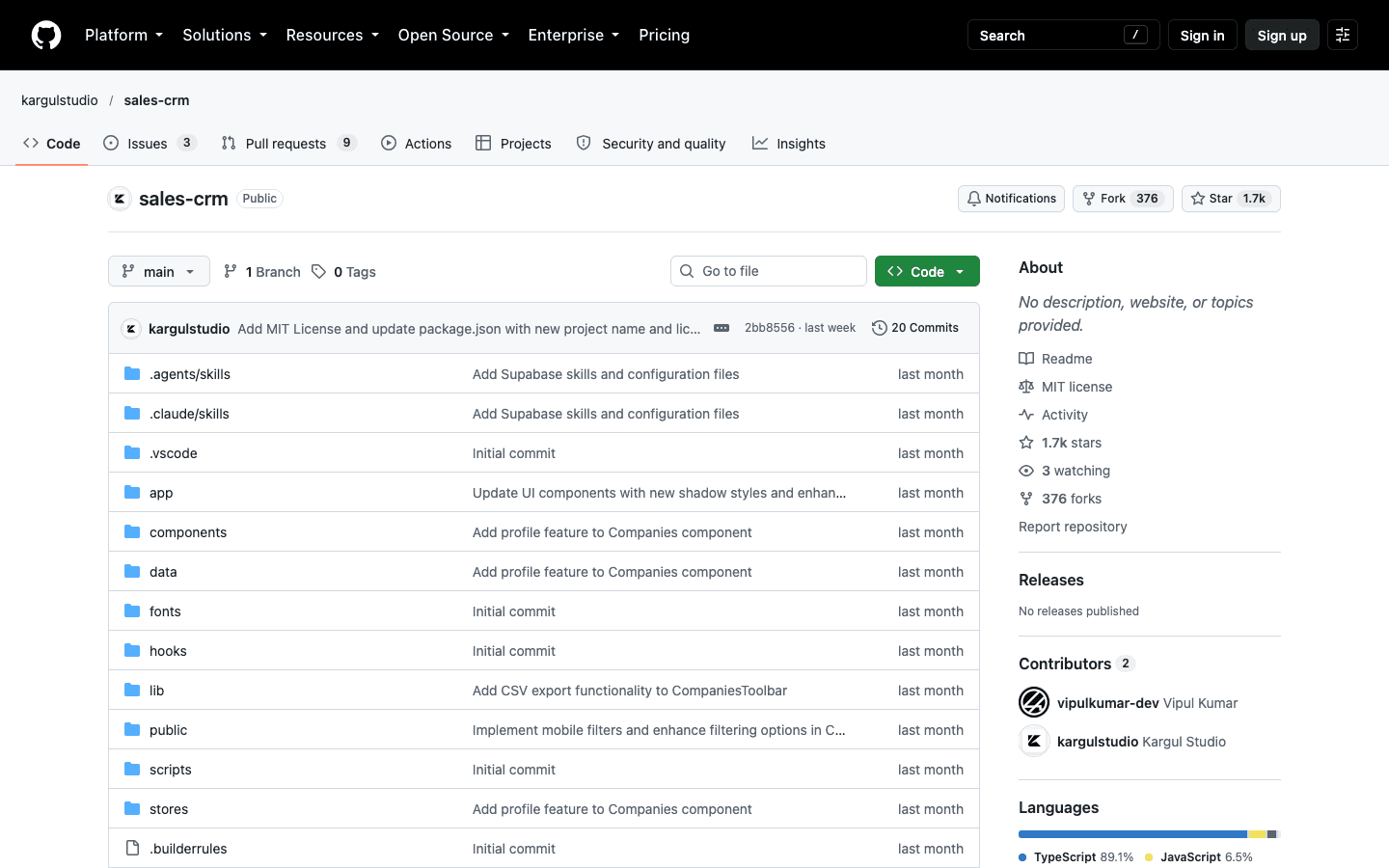
Copy the template repo link
Go to github.com/kargulstudio/sales-crm and copy the link from your browser.
It is a full CRM interface built with Next.js, with a sidebar, tables, filters, profiles and CSV export.
Starting from it means Claude copies a design that already looks premium, instead of inventing one from scratch.
You do not need to know GitHub. Claude Code downloads the template for you from the link.
- 2
Step 2
Give Claude Code your project and your data
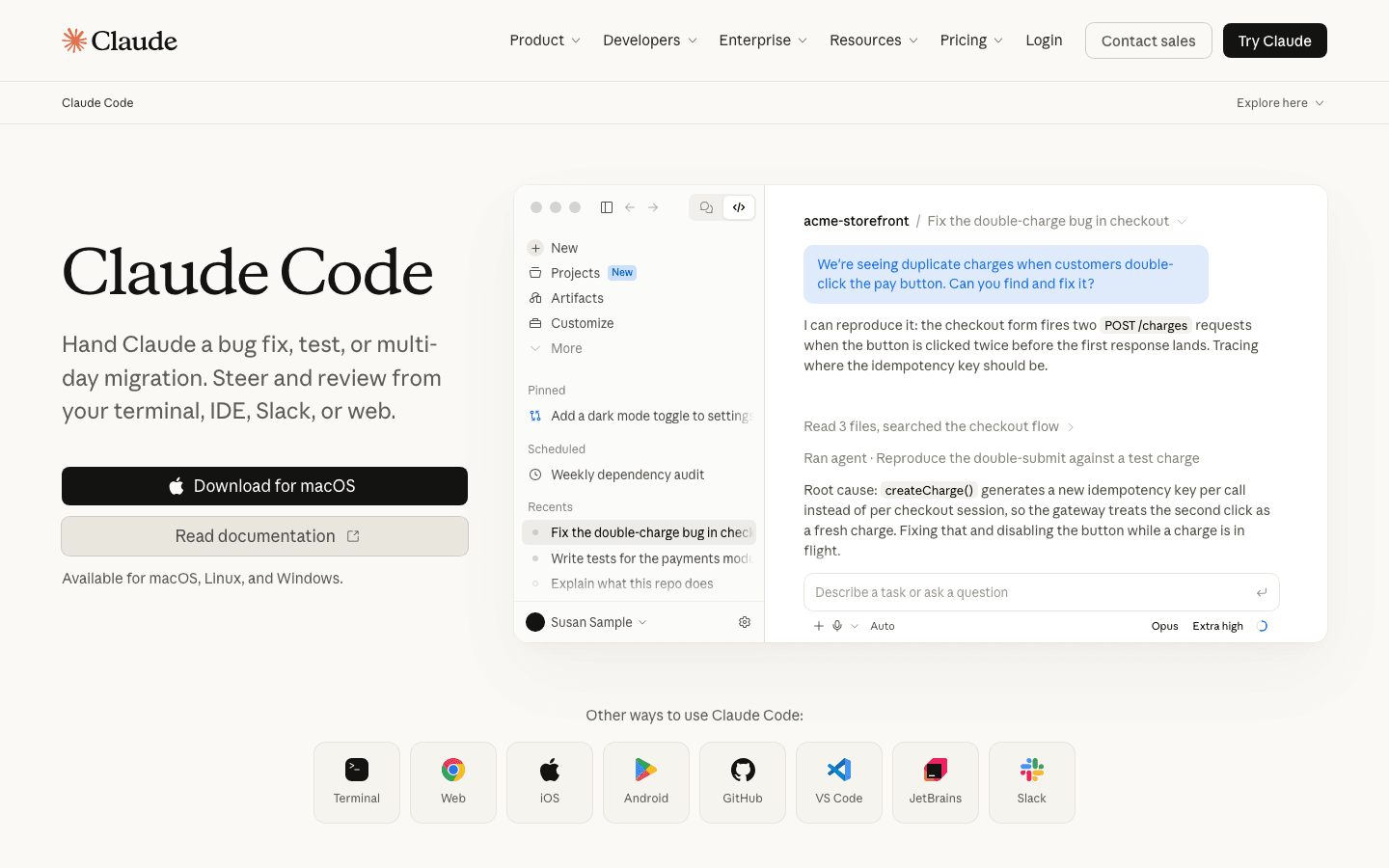
Create an empty folder, open Claude Code in it, and paste this prompt.
If your data lives in a spreadsheet, export it as a CSV and drop it in the folder first.
PromptClone this template into this folder and use it as the base for my app: https://github.com/kargulstudio/sales-crm Read its CLAUDE.md and CONVENTIONS.md before you write any code, and keep its design system. I want to turn it into a custom CRM for [what you track, e.g. the creators in my affiliate program]. My team uses it to [main job, e.g. track each creator's status, videos and payouts]. Here is my real data: [path to the CSV in this folder, or the link to your Notion database]. Replace the template's sample data with my data and rename every column, label and page to match it. Keep the layout, components and styling of the template. When you are done, run the app locally and give me the link.
- 3
Step 3
Check that the first version shows your real data
Open the local link Claude gives you, usually
http://localhost:3000.Click through the main table and one profile, and check that your real records and column names show up.
If something is wrong, tell Claude exactly what you see and what you expected.
Building around real data is the whole trick. A template full of fake data hides every problem until your team opens it.
Part 2 - Add what your team needs: Claude Code
- 4
Step 4
Add one feature per prompt
Keep chatting with Claude, and ask for one new section at a time.
Here are three examples to adapt.
PromptAdd a workspace switcher in the sidebar so I can split the records by [program / client / team]. Each workspace shows only its own records.
PromptAdd a Videos page that shows every video from my [creators / clients] in a grid, with the thumbnail, the date, the views and a link to the original post.
PromptAdd a Team page where I can invite team members by email and see who is assigned to which record.
One feature per message. Big multi-feature prompts are where AI apps start to break.
- 5
Step 5
Keep every new page on the main design
Add this line at the end of every feature prompt.
It is what makes the app feel like one real product instead of a pile of AI screens.
PromptBuild this with the same components, spacing, typography and colors as the main CRM page. Reuse the existing components instead of creating new ones, and follow CONVENTIONS.md.
Part 3 - Sync both ways: Notion API
- 6
Step 6
Create a Notion connection and copy its API key
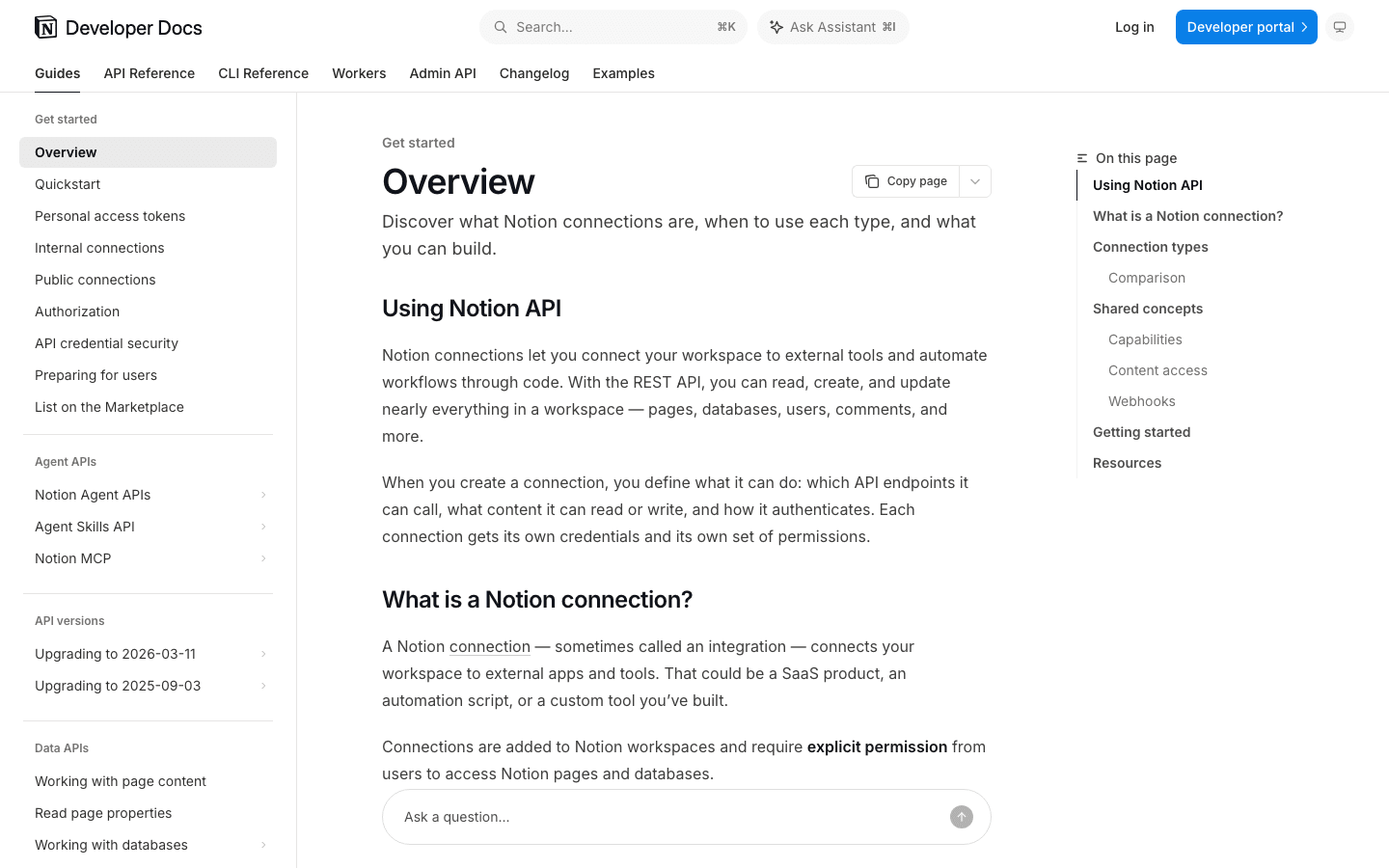
Go to app.notion.com/developers/connections and create a new internal connection for your workspace.
You need to be a workspace owner to do this.
Open the connection, go to the Configuration tab, and copy the API token.
Treat this key like a password. Never paste it into a public repo or share it in a screenshot.
- 7
Step 7
Share your database with the connection
The connection cannot see anything until you share pages with it.
Open your Notion database, click the ••• menu at the top right, choose Add connections, and pick the connection you just made.
- 8
Step 8
Ask Claude to sync both ways
Paste this into Claude Code, with the key and the database link.
PromptConnect the app to my Notion database so it is the single source of truth. Notion API key: [your key] Database: [link to your Notion database] Save the key in a .env.local file as NOTION_API_KEY and make sure .env.local is in .gitignore. The app should read every record from Notion, and every change I make in the app should be written back to Notion. Changes made directly in Notion should show up in the app when I refresh. Map each Notion property to the matching field in the app.
Your team can keep using Notion. Whoever prefers the app uses the app, and everything stays in one place.
Part 4 - Deploy for free and invite your team: Vercel
- 9
Step 9
Add a team password
Vercel's built-in Password Protection is a paid add-on, so ask Claude to build a simple login instead.
PromptAdd a simple password screen in front of the whole app. The password is stored in an environment variable called TEAM_PASSWORD. Once someone enters it, keep them logged in on that device with a secure cookie.
- 10
Step 10
Deploy on Vercel and add your keys
Ask Claude to push the project to a private GitHub repo.
Then go to vercel.com, sign up with GitHub, click Add New → Project, and import that repo.
Before you deploy, add NOTION_API_KEY and TEAM_PASSWORD under Environment Variables.
Click Deploy, and you get a live link in about a minute.
Hobby is free but non-commercial. Vercel's terms say the free plan is for personal use. If the app runs your business, move to Pro at $20/month.
- 11
Step 11
Send your team the link and the password
Share the live link and the team password with your team.
Every time you ask Claude for a change and it pushes to GitHub, Vercel updates the live app automatically.
Part 5 - Plan the app before you build it with Stage
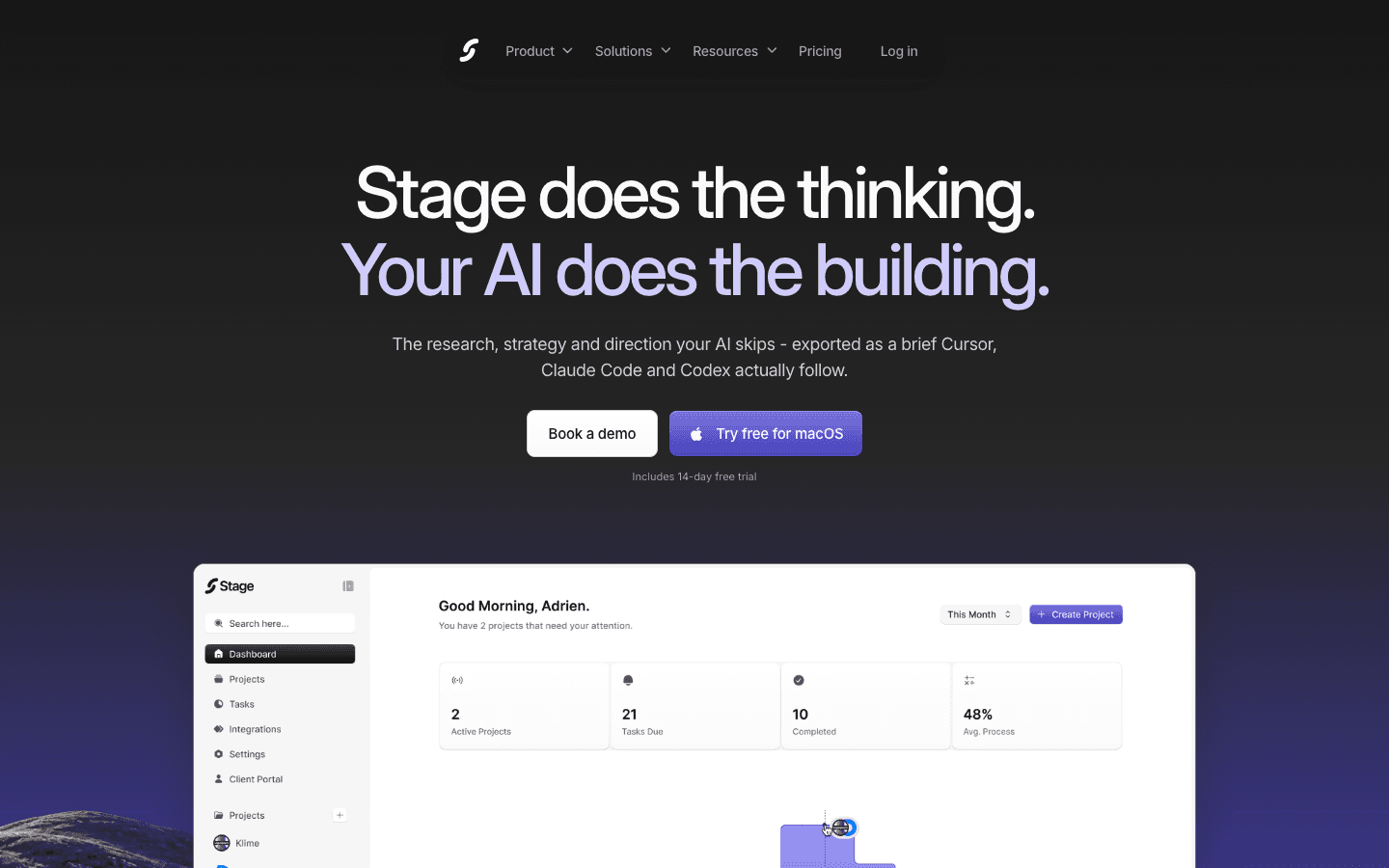
The hardest part is knowing exactly what your team needs before you start prompting.
Stage does that thinking for you. It researches your users, maps the pages and flows, and exports a brief that Claude Code follows step by step.
You skip the back-and-forth and get the right app on the first build.
Try Stage free for 14 days at getstage.co.
Tips
- Ask your team what they hate about the current spreadsheet before you add any feature.
- Commit to GitHub after every feature that works, so you can always go back.
- If Claude breaks the design, paste a screenshot of the main page and ask it to match it.
- Start with one workflow your team uses daily, and add the rest once they are using the app.