
Websites That Don't Look AI
Oct 17, 2026 · 12 steps
What you need
- Claude Code to plan, build and code the website. It is included with a paid Claude plan, from $17/mo on Pro billed yearly.
- Cursor as an optional code editor to run Claude Code in. It has a free plan, with paid plans for heavier use. The Claude Code app works just as well.
- Details.so to find a website to use as your style reference. It is free to browse.
- Limora AI to create every image the site needs in one consistent style. You can start for free with no credit card, then Starter is $29/mo and Pro is $59/mo.
Part 1 - Plan the site: Claude Code
- 1
Step 1
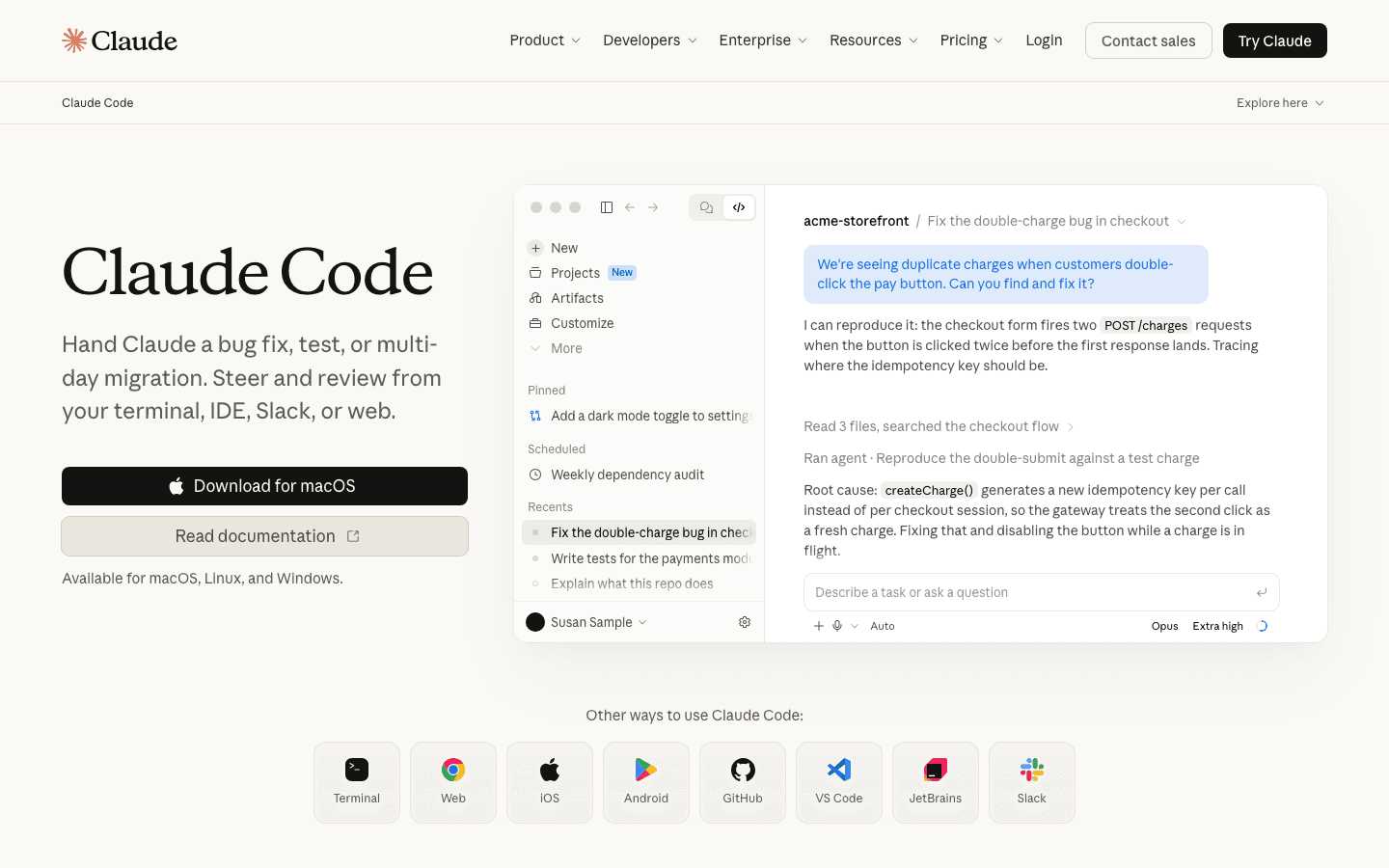
Open a new Claude Code project
Create an empty folder for your website and open it in your code editor. I use Cursor, which runs Claude Code inside it.
You can also use the Claude Code app, or Codex if you prefer. The workflow is exactly the same.
Give the folder a clear name, like "website-concepts", then open a Claude Code chat in it.
You don't need to know how to code. Claude Code writes every file. You only describe what you want.
- 2
Step 2
Pick one style reference on Details
AI copies the average of the internet when you give it nothing to aim at. A real website as a reference fixes that.
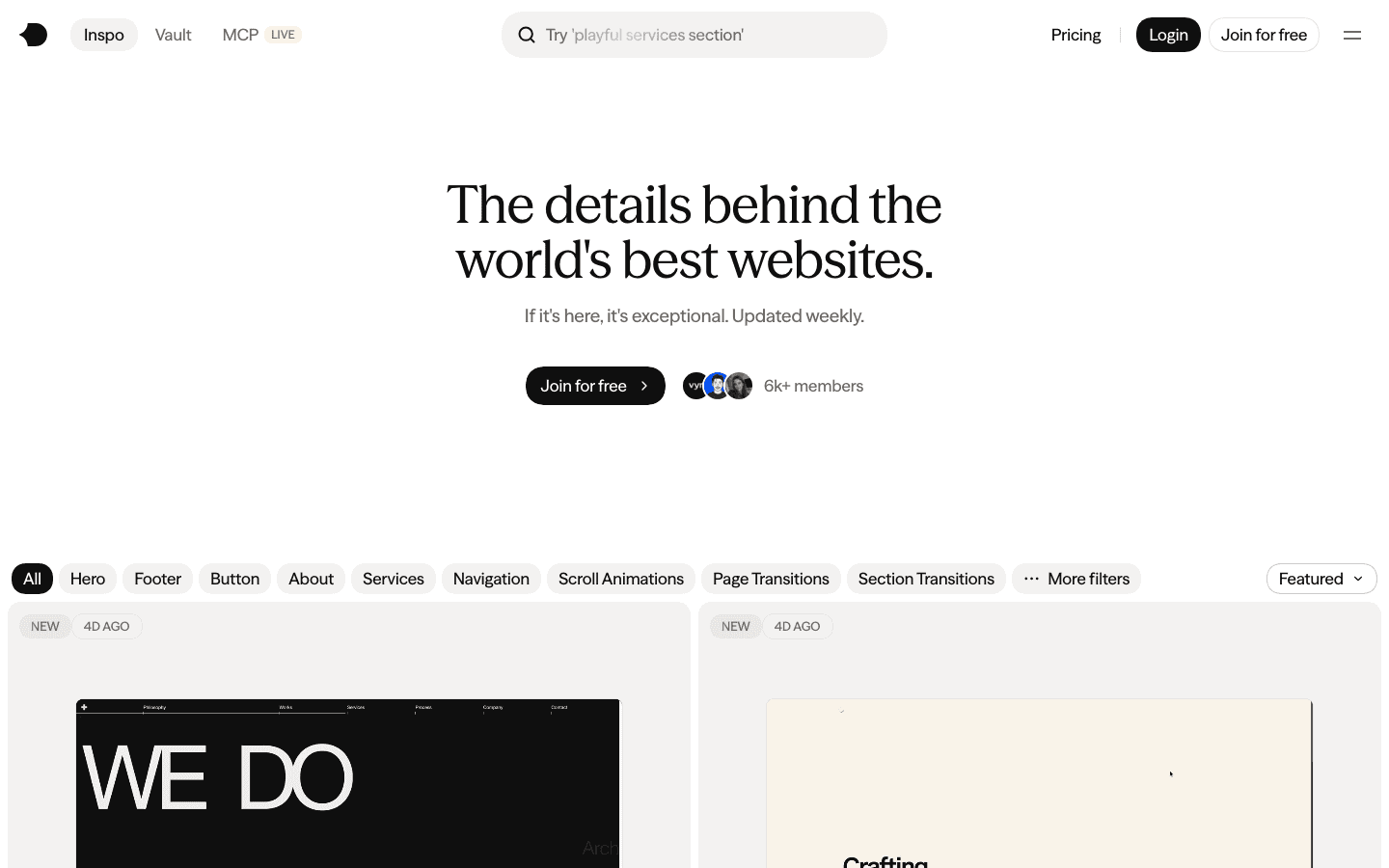
Details.so collects the best websites on the internet and is updated every week. Filter by industry, style, interaction type or section to find a site with the mood you want.
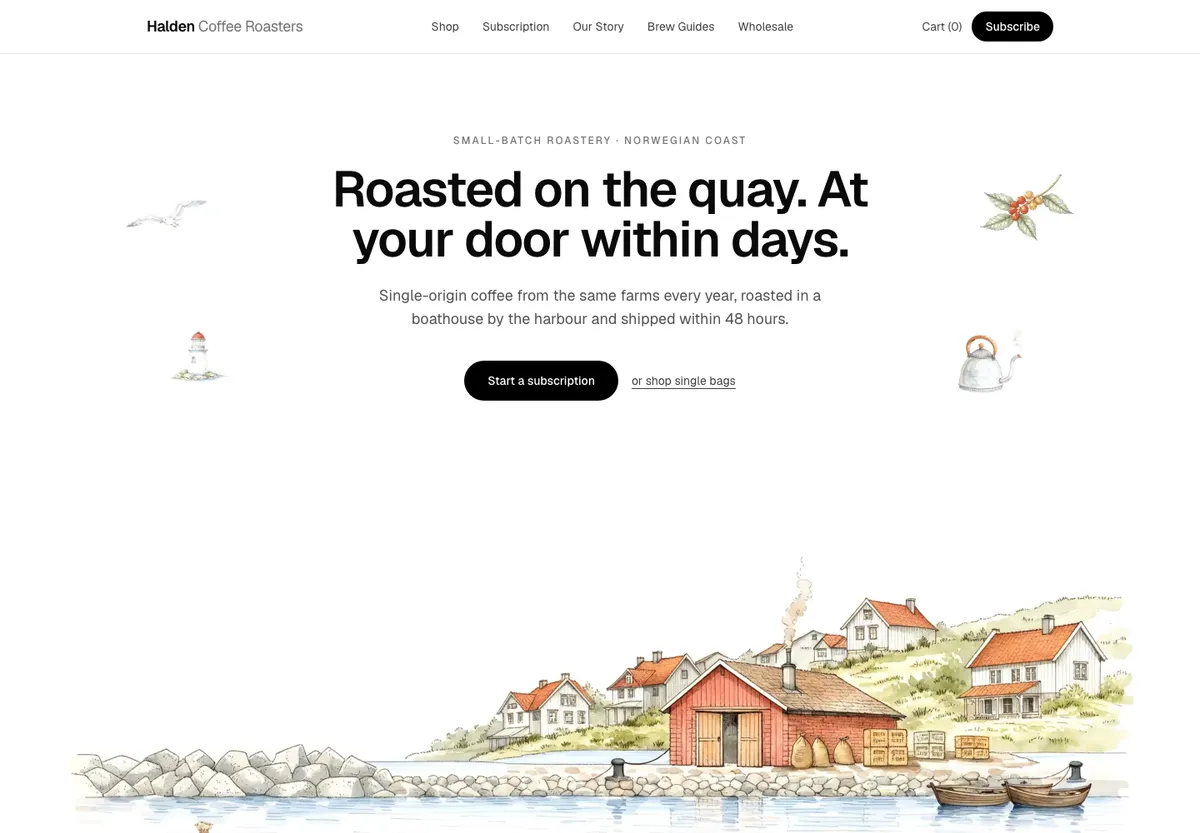
For the coffee brand in the video, I used kobbe.io. It has a calm, minimal layout with lots of whitespace and one hand-painted illustration world. Copy the link of your reference for the next step.
Pick the reference for its structure and mood, not its content. The prompt tells Claude never to copy its copy, artwork or brand.
- 3
Step 3
Paste the wireframe prompt
This is the only long prompt in the workflow. Fill in your business details and your style reference, then send it.
Claude researches your market, writes the sitemap, and builds a gray-box wireframe with real copy. It also writes a brief for every image slot, which the image step uses later.
PromptYou are a senior brand strategist and web designer. I want to build a premium website for my business. Work in three phases and finish each one before starting the next. ## My business - Name: [business name] - What we do: [what you sell or offer, in one or two sentences] - Who it's for: [your ideal customer] - What makes us different: [the one or two things nobody else does] - Where we're based: [city, region or type of place] - Goal of the site: [the one action you want visitors to take] ## Style reference Use [reference website URL] as the reference for structure and mood only. [One sentence on what you like about it, for example: a calm, minimal, editorial layout with lots of whitespace and one consistent illustration world]. Do not copy its copy, its artwork or its brand. ## Phase 1 - Research Research my market before designing anything. Look at 5 premium [your industry] brands and note how they position themselves, what they put on their homepage and how they sell. Then write research.md covering: - My audience: what they want, what they doubt and what makes them buy - My positioning: one sentence on why someone picks us over the others - 3 key messages the homepage has to land - The illustration world for the brand: one place or theme, told through one consistent style, and how it connects to our story ## Phase 2 - Sitemap Write sitemap.md with every page the site needs and a one-line purpose for each. Then list the homepage sections in order. Follow the reference's rhythm. For example: 1. Navigation 2. Hero: headline, one supporting line, a primary button, and a wide illustrated scene 3. A short statement section with no image 4. Three feature blocks that alternate image and text 5. The product or service lineup 6. A small spot illustration that acts as a breather 7. Pricing or plans 8. FAQ 9. A closing call to action 10. Footer with a wide illustrated scene ## Phase 3 - Low-fi wireframe Build the homepage as a working, responsive page using Next.js and Tailwind. Rules for the wireframe: - Grayscale only. Use white, light grays and black, with one neutral sans-serif font. No brand colours yet. - Every image is a gray box on purpose. Do not use stock photos, placeholder services or generated images. The real assets get created in the next step. - Label every gray box in the centre with its slot ID, its asset type (illustration, product shot or icon), its aspect ratio and a one-line description of what goes there. For example: HERO-SCENE · illustration · 16:6 · [short description of the scene]. - Use real copy written from the research. No lorem ipsum. - Give each slot a planned file path in /public/assets/ (for example /public/assets/hero-scene.webp) so the real images can be dropped in later without changing the layout. - Plan around 20 illustrated assets in total, including small details. Keep them all in one visual world so they can be generated as a set. When the page is built, write assets.md. It should list every slot with its ID, file path, aspect ratio, asset type and a detailed description written as a brief for an image generator. Put the shared style rules at the top: [the look you want, for example a soft watercolour, hand-painted look in one consistent palette and world]. Then run the site locally, give me the link and stop. Don't generate any images yet.
- 4
Step 4
Check the structure before you add any images
Open the local link Claude gives you. You should see the full homepage in gray boxes, with real copy and a label on every image slot.
Read it as a visitor would. Is the order of the sections right? Is the headline clear? Fix anything now with a short follow-up message, because it is much cheaper than fixing it after the images exist.
Don't skip the gray boxes. Structure comes first. If you add images to a weak layout, you only get a prettier weak layout.
Part 2 - Set up the look: Limora AI
- 5
Step 5
Create a custom style from 1 to 5 images
A style is what makes every image on the site look like it belongs to the same brand.
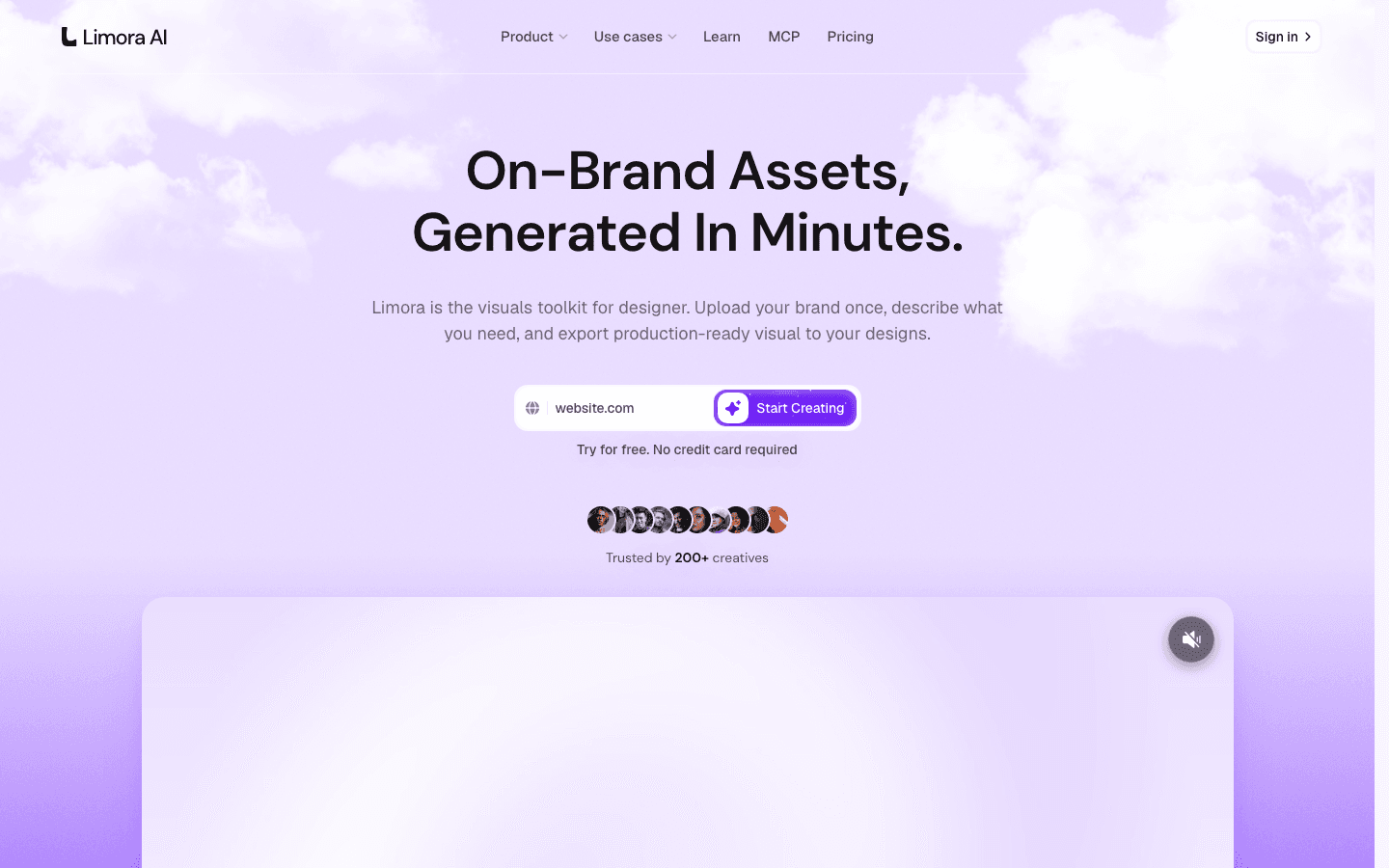
In Limora AI, open Styles and click to create a new one. Upload 1 to 5 reference images that share the same look. You can also pick from the assets you already created.
Click Create style and it appears in your list. Every image you generate with that style selected comes out consistent.
If you don't want to make your own, pick a ready-made style from the Limora AI community library instead, like the one I used in the video.
Use images that clearly share one look. Mixing a watercolour and a 3D render in the same style gives you a blurry middle ground.
- 6
Step 6
Connect the Limora AI MCP to Claude Code
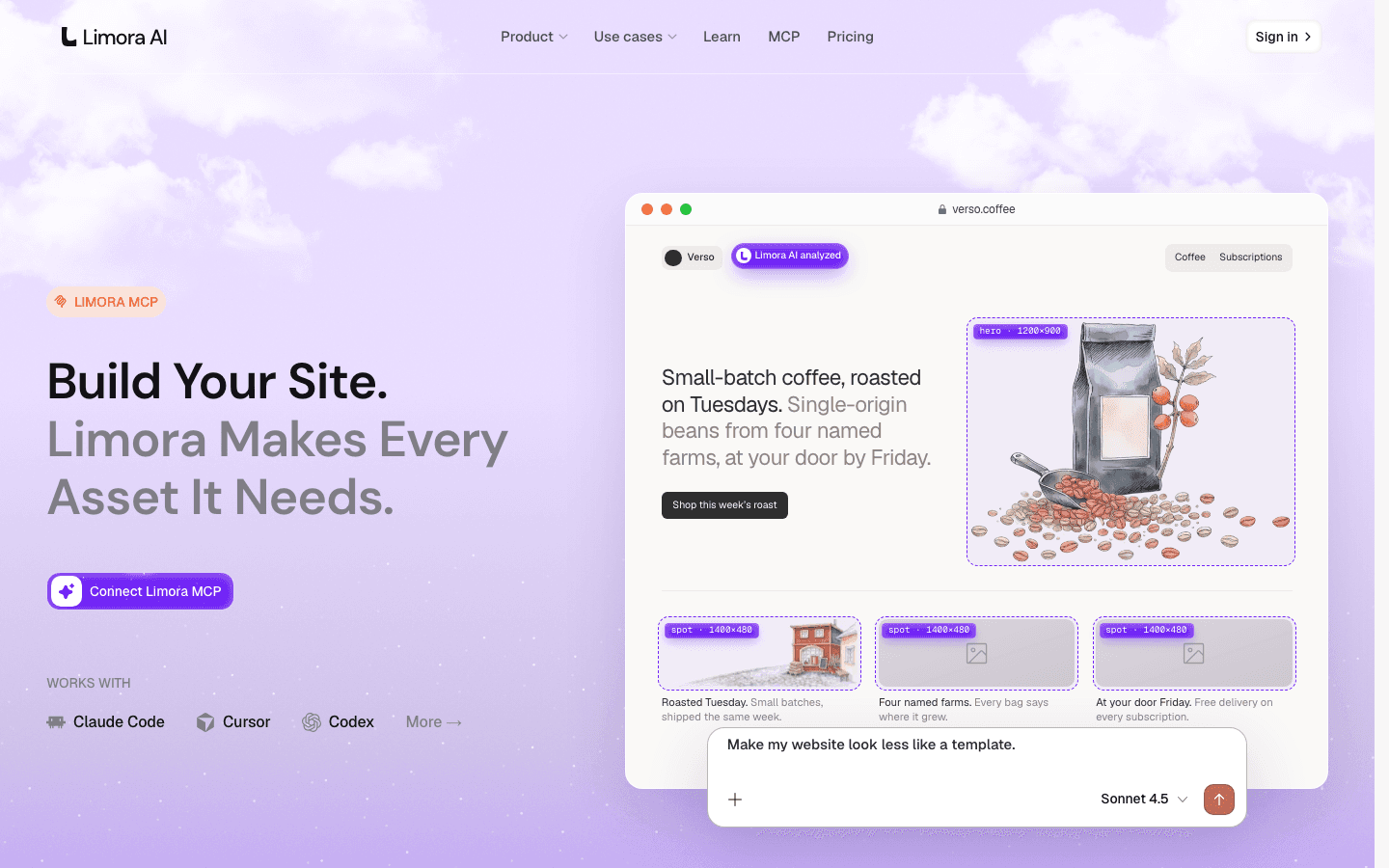
An MCP lets your coding agent use another app directly. Once it's connected, Claude Code can create, edit and download Limora AI images for you.
Run this command once in your terminal:
Terminalclaude mcp add --transport http limora https://app.limora.ai/mcp
The first time Claude uses it, it asks you to sign in to your Limora AI account. Images use the credits on that account.
For Codex, Cursor and other tools, open the Limora AI MCP page, select your tool and copy its command.
A free account is enough to test it. Create one before you connect, so the sign-in step takes a few seconds.
Part 3 - Generate every image: Limora AI MCP
- 7
Step 7
Generate all the assets with one prompt
Go back to the Claude Code chat where you built the wireframe. Swap in your project name and your style name, then send this.
PromptNow use the Limora AI MCP to generate the assets of our website. Create a new project called [project name] and use the [style name] style for every image. Create one image for each slot in assets.md, using its description and aspect ratio.
Claude writes a separate prompt for every placeholder, based on the brief it wrote in the
assets.mdfile. Every image matches the section it belongs to.After a few minutes, open the project in Limora AI. The right panel shows the history of every asset, and the Canvas view shows them all side by side.
This is the step that removes the AI look. The images are made for your copy and your brand, so they can't be on forty other websites.
- 8
Step 8
Fix one image with an edit prompt
If one image isn't right, you don't have to start again. Click the asset, click the prompt box and describe the change.
PromptRemove the [object] from the image.
Pick the image model before you send it. For edits, GPT Image 2.5 Sunburst works best, because it is very precise and also the cheapest.
Ask for an edit, not a new image. An edit keeps everything you liked and only changes what you named.
- 9
Step 9
Upscale the big images and vectorize the ones you want to animate
Click an image to open the toolbar.
Use Double the resolution for the images that show up large, like the hero (the first section of the site) and the footer. The upscaled version is much sharper on big screens.
Use Vectorize for any illustration you want to animate later. It turns the image into an SVG, which code can move piece by piece.
Only upscale what needs it. Small icons and spot illustrations look fine at the normal size.
Part 4 - Bring it into the site: Claude Code
- 10
Step 10
Push the images into the site
You don't need to export anything by hand. Thanks to the MCP, Claude can download the images and put each one in the right slot.
PromptPush the images from the [project name] project to our site, using the Limora AI MCP. Save each one at the file path listed in assets.md.
Open the site again. The gray boxes are now your finished images.
Read each section with its image. The illustration should match the copy next to it. If something feels off, like two product images at different sizes, ask Claude to fix it in one short message.
The layout doesn't change. Each slot already had its file path, so the images drop in without breaking anything.
- 11
Step 11
Animate the illustrations
Use this once you have vectorized an illustration in Step 9.
PromptUse the vectorized SVG version of [image name] from the [project name] project in Limora AI, and animate it on the page. Keep the motion subtle: [for example, the birds drift slowly across the sky]. Make it loop smoothly, and turn it off for visitors who prefer reduced motion.
One animated illustration is enough. A single moving detail feels premium. Ten of them feel like a template.
- 12
Step 12
Add real product photos with Brand Storage
Illustrations are perfect for the story. For products, use your real photos.
In Limora AI, open Brand Storage and click Scrape your URL. Paste your website and Limora AI collects your brand assets. Then add your product images.
Then ask Claude to use them.
PromptLook at my brand storage in Limora AI and put the right product image on each product card of the site. Match each image to its product name and keep the existing aspect ratios.
Part 5 - Try it free with Limora AI
Everything in Parts 2 to 4 runs on Limora AI: the custom style, the MCP, the edits, the upscale, the vectorize and Brand Storage. You can create a free account to test it on your own site, with no credit card. Start here: limora.ai.
Tips
- Write your business details in the prompt as you would explain them to a friend, because vague details give you vague copy.
- Keep one style for the whole site, and create a new style only for a new brand.
- Make every change as an edit prompt, because edits keep what already works and cost fewer credits.
- Save your filled-in wireframe prompt, so the next client site starts in two minutes.