
Turn References Into DESIGN.md
Nov 22, 2026 · 15 steps

Claude isn't bad at design. It just doesn't know your taste.
When you give it no direction, it falls back on the average of everything it has seen. That's why so many AI sites look the same.
A DESIGN.md fixes that. It's a simple text file that describes a design style, with the colors, fonts, spacing and rules, in a way AI tools can read.
In this guide, you collect references you love, bring them into Stage, and let it write that style guide for you. Then Claude uses it on your next project.
What you need
- Pinterest for broad visual inspiration. It's free with an account.
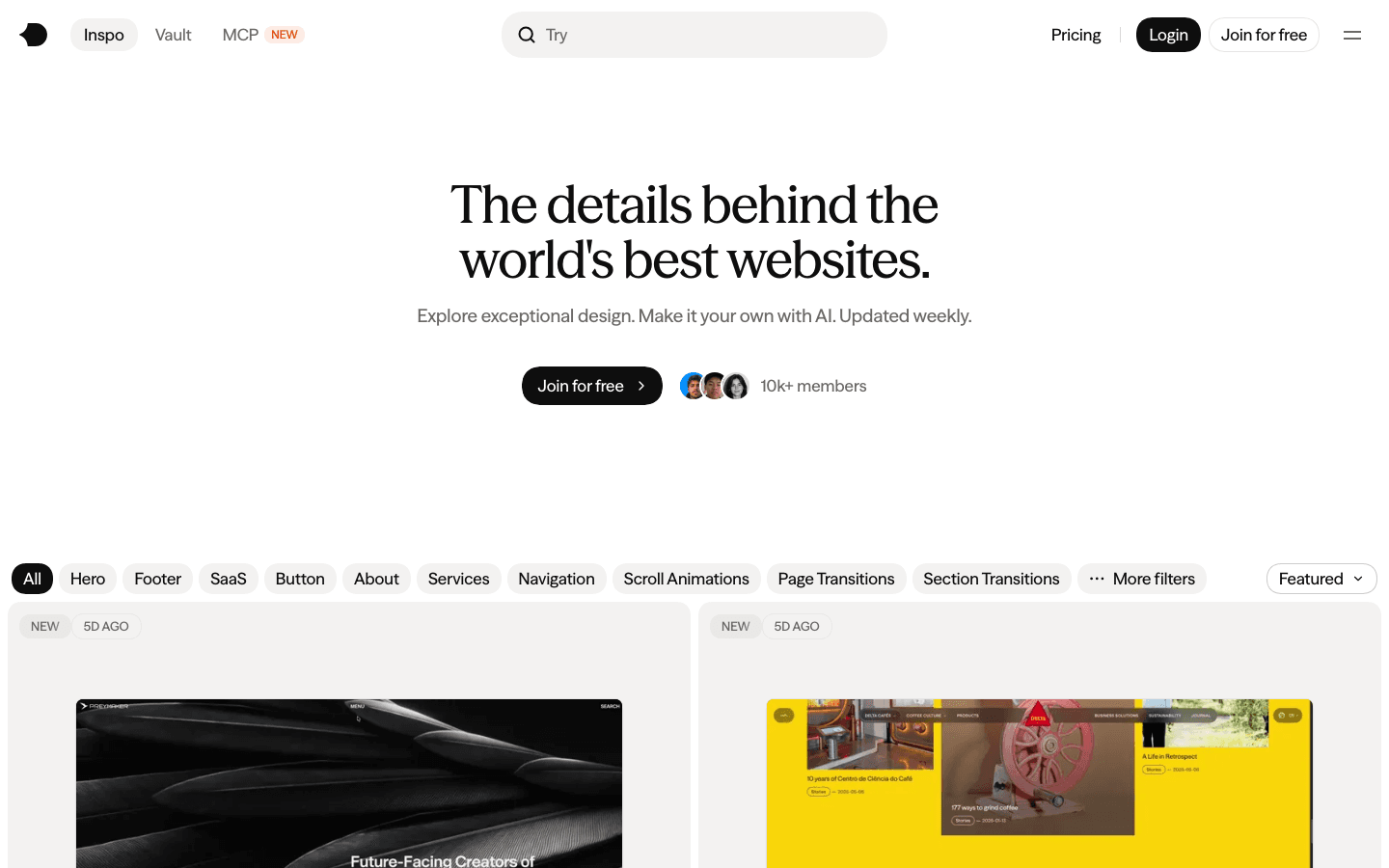
- Details for sections from the best websites. You can browse recent references for free, and Pro is $9/month on the annual plan.
- Mobbin for real app and website screens. You can join for free, and paid plans unlock the full library.
- Figma for your moodboard. The free plan is enough.
- Stage to turn the moodboard into a style guide. It has a 14-day free trial, then starts at $29/month.
- Claude (or Claude Code, ChatGPT, Cursor or Codex) to connect Stage and build with your style guide.
Part 1 - Collect your references: Pinterest, Details and Mobbin
Your AI can only design as well as the references you give it. This part is where your taste comes in.
- 1
Step 1
Search by section, not by site
On Pinterest, search for the exact thing you need, like "hero section web design" or "minimal pricing page". It's great for mood, color and imagery.
On Details, filter by section: Hero, Footer, Navigation, Scroll Animations and more. Every reference comes from a real website.
Open DetailsSave two or three references for each section you plan to build. One reference gets copied, while three give the AI a pattern to learn from.
- 2
Step 2
Find real app screens on Mobbin
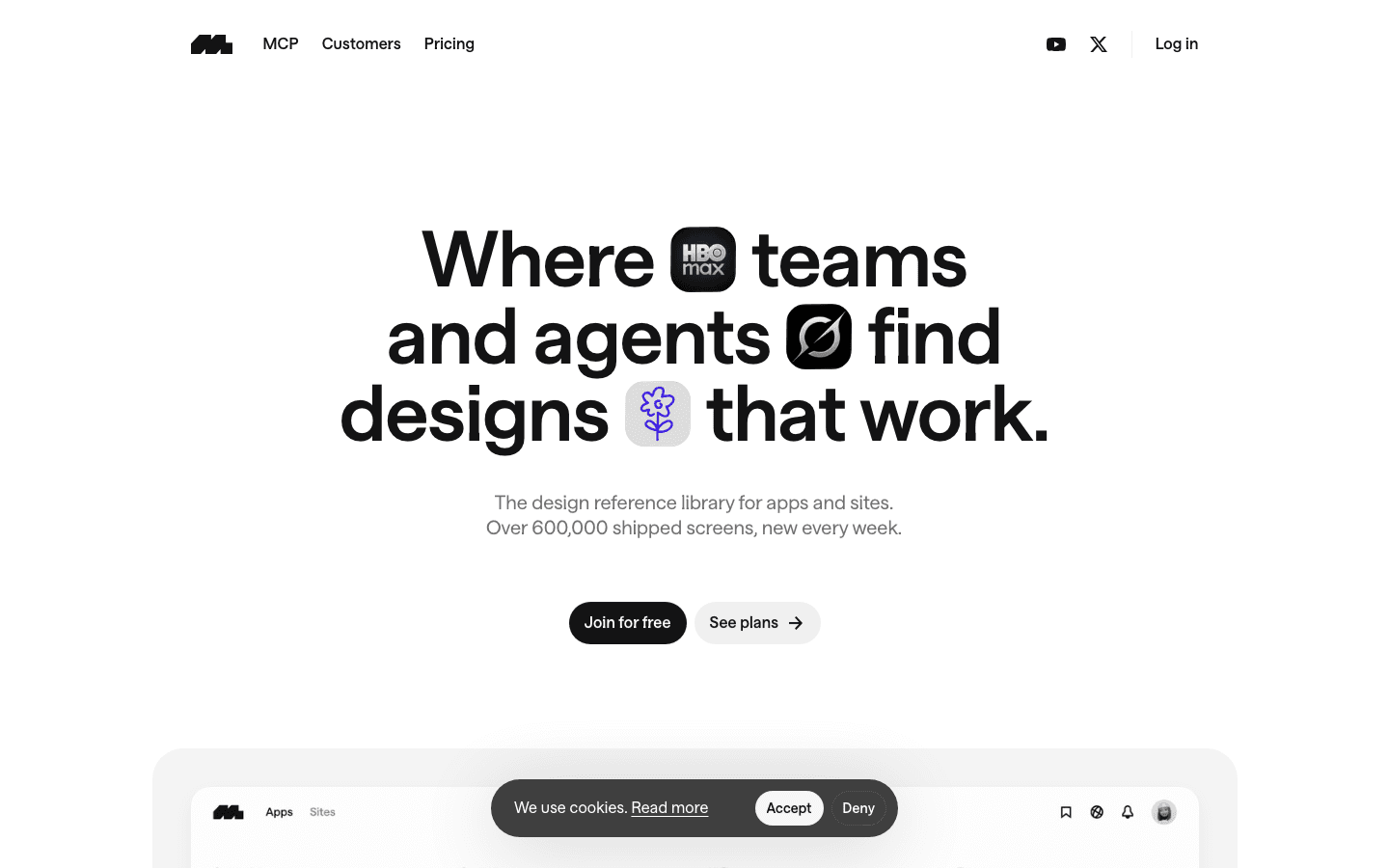
Mobbin has over 600,000 shipped screens from real apps and sites. Use it for anything inside a product, like onboarding, dashboards, settings and empty states.
Look at the whole flow, not just one screen, so you see how the best products handle each step.
Open Mobbin - 3
Step 3
Keep one style
Pick references that look like they belong together. A dark editorial hero next to a playful pastel dashboard sends mixed signals.
Mixing five different looks gives Claude five different answers. If you like two styles, keep them apart and turn them into two directions in Part 3.
Part 2 - Build the moodboard: Figma
Figma is where all your references live in one place. Stage reads the board straight from its link.
- 4
Step 4
Paste everything into one board
Create a new Figma design file. Copy each image from the sites above and paste it onto the canvas.
Group similar references next to each other, for example all heroes on one row and all cards on another. It makes the next part faster.
Paste images, not links. Stage pulls the images out of the board, so a link pasted as text won't come through.
- 5
Step 5
Copy the share link
Click Share in the top right of Figma and copy the link.
If Stage can't read your board, set link access to Anyone with the link can view, then copy the link again.
Part 3 - Connect Stage to your AI: Stage MCP
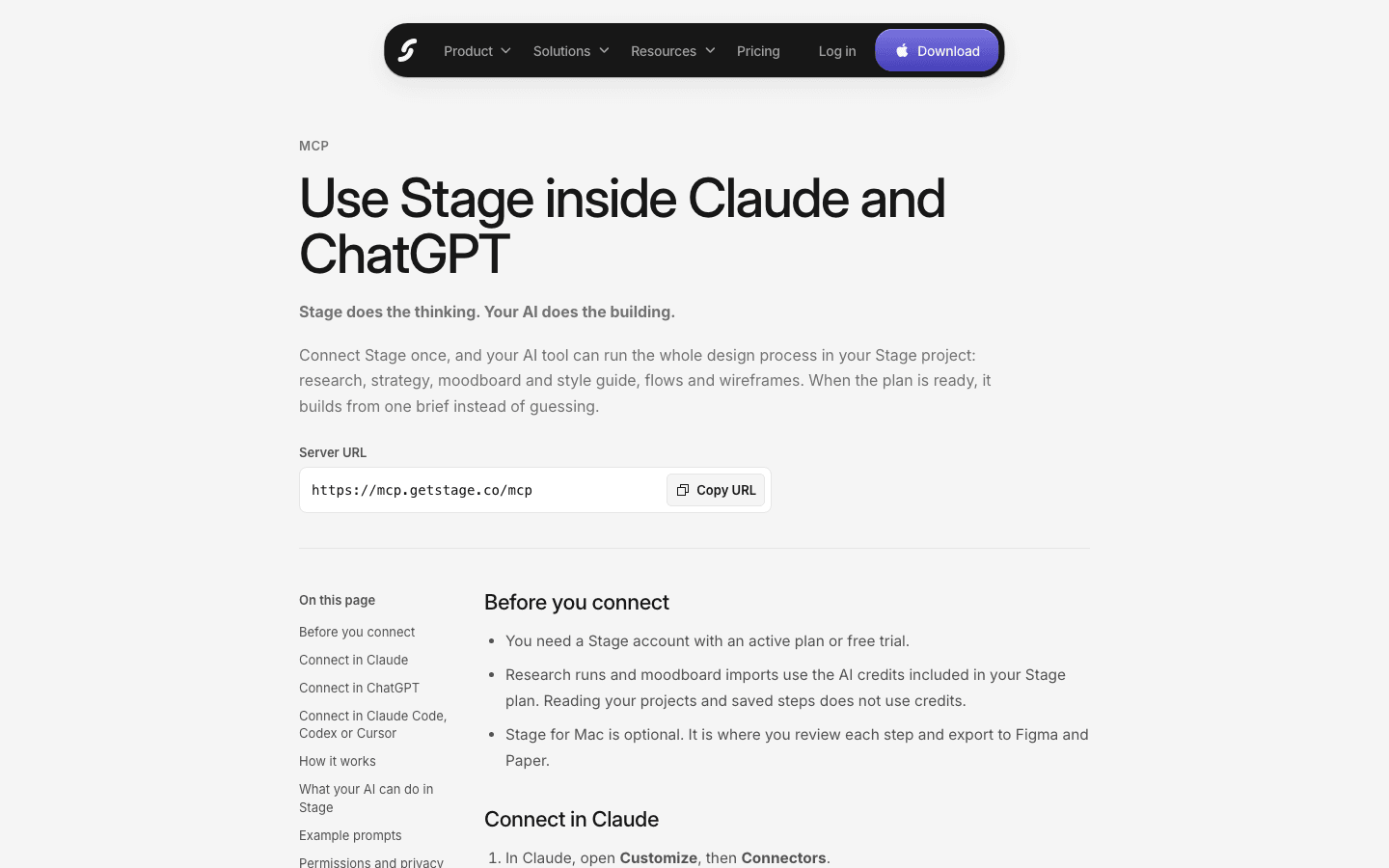
Stage does the thinking before your AI builds: research, strategy, moodboard and style guide, flows and wireframes. Its MCP lets Claude and other AI tools work directly in your Stage projects.
- 6
Step 6
Start your Stage trial
Go to getstage.co and click Try free for macOS. Every plan starts with a 14-day free trial.
Create a project for the site or app you want to build. Stage works for websites, web apps and iOS apps.
The MCP needs a Stage account with an active plan or trial. The Mac app is where you review each step, which you'll do in Part 4.
- 7
Step 7
Add the Stage MCP to Claude
Copy the server URL:
texthttps://mcp.getstage.co/mcp
In Claude, open Customize, then Connectors. Click Add, then Custom, then Web.
Name it Stage, paste the URL and click Continue. Choose Sign in now and Register automatically, click Add, then sign in to Stage and click Allow.
On a Claude Team or Enterprise plan, an owner may need to add the connector for the organization first.
- 8
Step 8
Or add it to Claude Code, Codex or Cursor
Claude Code. Run this, then type
/mcpand sign in:Terminalclaude mcp add --transport http stage https://mcp.getstage.co/mcp
Codex. Add this to
~/.codex/config.toml, then runcodex mcp login stage:toml[mcp_servers.stage] url = "https://mcp.getstage.co/mcp"
Cursor. Add this to
~/.cursor/mcp.json, then click Connect next to Stage in the MCP settings:json{ "mcpServers": { "stage": { "url": "https://mcp.getstage.co/mcp" } } }ChatGPT works too. The steps are on the Stage MCP page.
- 9
Step 9
Paste your Figma link
Open a new chat and send this prompt with your own details:
mdUsing Stage, add every image from this Figma board to the moodboard of my project [project name], in a new direction called [direction name]: [your Figma link]
Stage extracts the images from your board in the background. It usually takes under a minute.
A moodboard import uses AI credits from your Stage plan, the same as importing in the Mac app. Reading your projects is free.
Part 4 - Turn it into a style guide: Stage
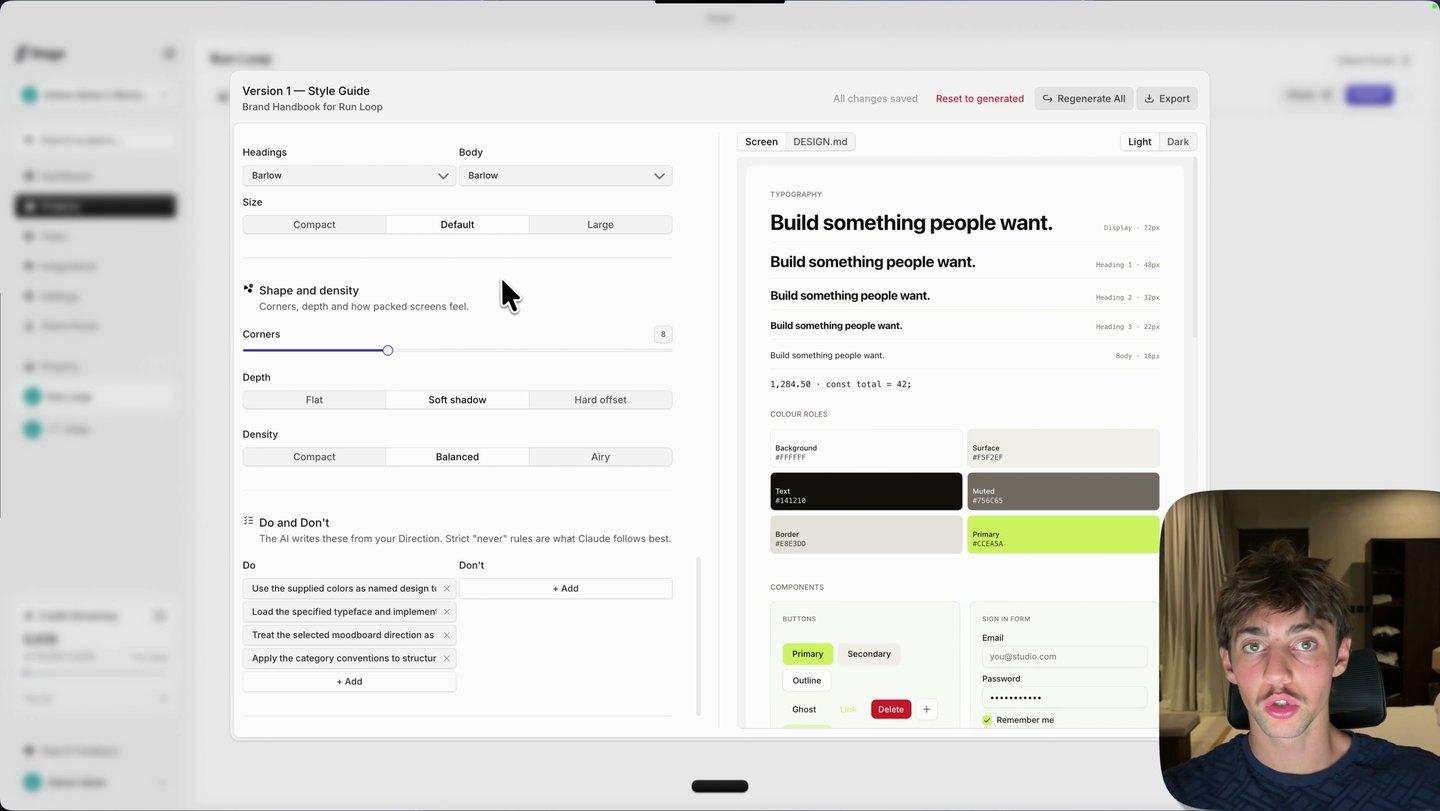
This style guide is your DESIGN.md. It's the document that tells your AI exactly how your design should look.
- 10
Step 10
Create your directions
Open your project in Stage and go to the moodboard. Your Figma images are there.
Select the references you like, click Add to direction, and give the direction a name. Make a second direction if you want to compare two styles.
A direction is one clear style. Claude gets one answer to follow instead of guessing between several.
- 11
Step 11
Generate the style guide
Open the direction and click Generate style guide.
Stage writes a full guide for your AI: typography, colors, type scale, layout, and do's and don'ts, all based on your references.
- 12
Step 12
Customize the details
Go through each part of the guide and change anything that doesn't feel right. The preview updates live, so if you change the primary color, every component updates with it.
Spend the most time on fonts and colors. They change how the whole site feels more than anything else.
- 13
Step 13
Add a note on each reference
Tell your AI what you love about each image. A reference without a note is just a picture, while a note tells Claude what to take from it.
mdI want the same layout for my hero!
Other good notes: "Copy the spacing between these cards", "Use this button style everywhere" or "Only take the color palette from this one".
Part 5 - Use it on your next project: Claude
Your style guide is ready. Now Claude builds with your taste instead of its default.
- 14
Step 14
Ask Claude to use your style guide
With Stage connected, start your build with this prompt:
mdRead the style guide of the [direction name] direction in my Stage project [project name], including my notes on each reference. Use it as the design system for this build: the fonts, colors, type scale, layout and the do's and don'ts. Now build [what you want to build]. Before you write any code, tell me which parts of the style guide you'll apply to each section.
The last line matters. It makes Claude show you its plan, so you catch a wrong font or color before it's in every file.
- 15
Step 15
Keep it as a file in your project
If you'd rather keep the guide in your code, click Export in Stage. Your project comes out as Markdown files, including the style guide.
Save the style guide as
DESIGN.mdat the root of your project. Then any AI tool you open there can read it.mdRead DESIGN.md and follow it for every screen you build.
Part 6 - Do the whole process with Stage
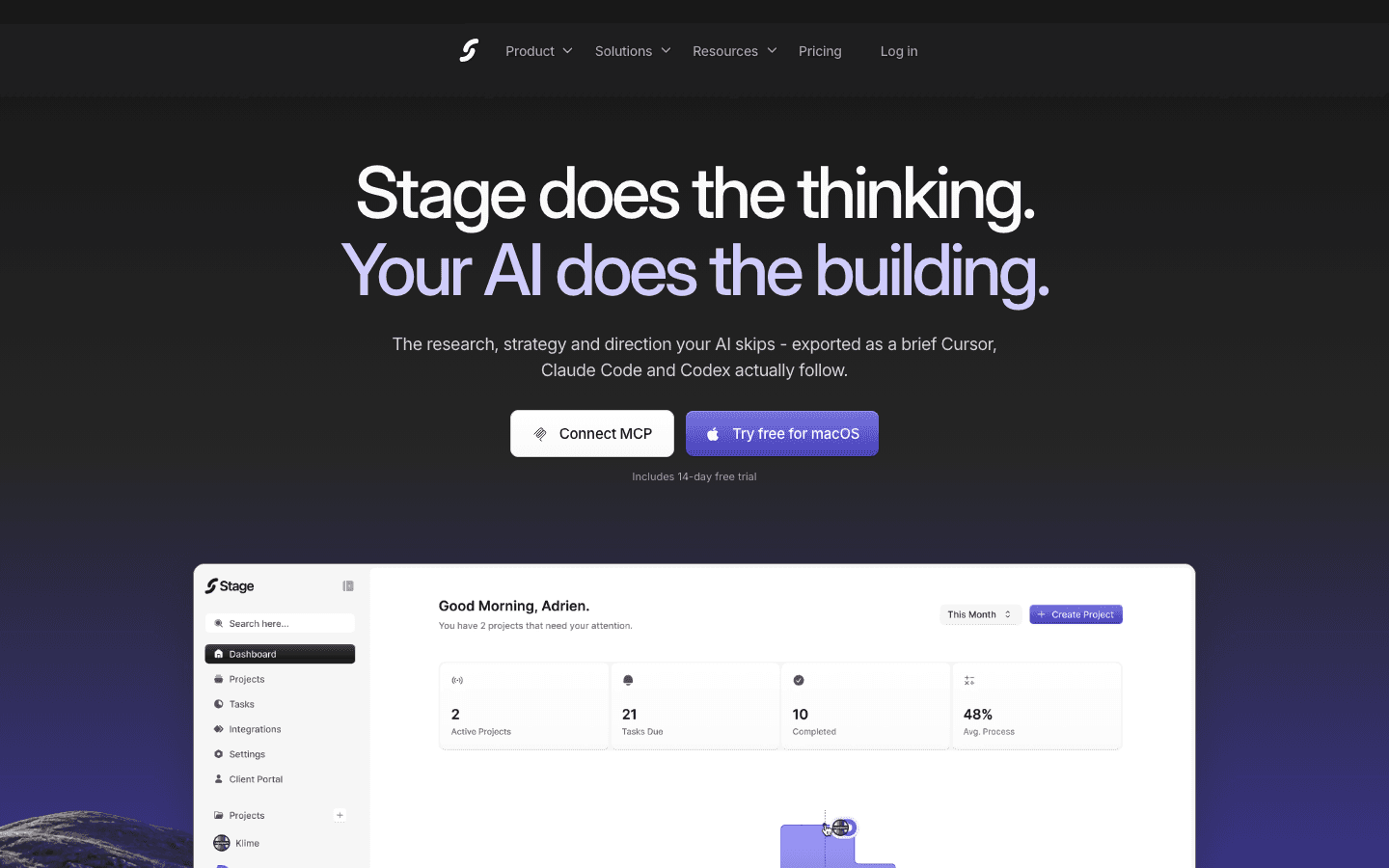
The style guide is only one step. Stage also runs the research, strategy, flows and wireframes your AI skips, then gives Claude Code, Cursor and Codex one brief they actually follow. Try it free for 14 days.
Tips
- Collect references for one project at a time. A board for "everything I like" makes a vague style guide.
- Write your notes like you're briefing a designer. Specific notes get specific results.
- Keep your best style guides. A good direction can be the starting point for your next project.
- Update the guide when you change your mind, then ask Claude to read it again before the next change.