
2-Minute E-Commerce Site
Jul 28, 2026 · 7 steps
Part 1 - Generate your product photos in Limora
The images are what make or break an AI-built store. Start here.
- 1
Step 1
Load your brand
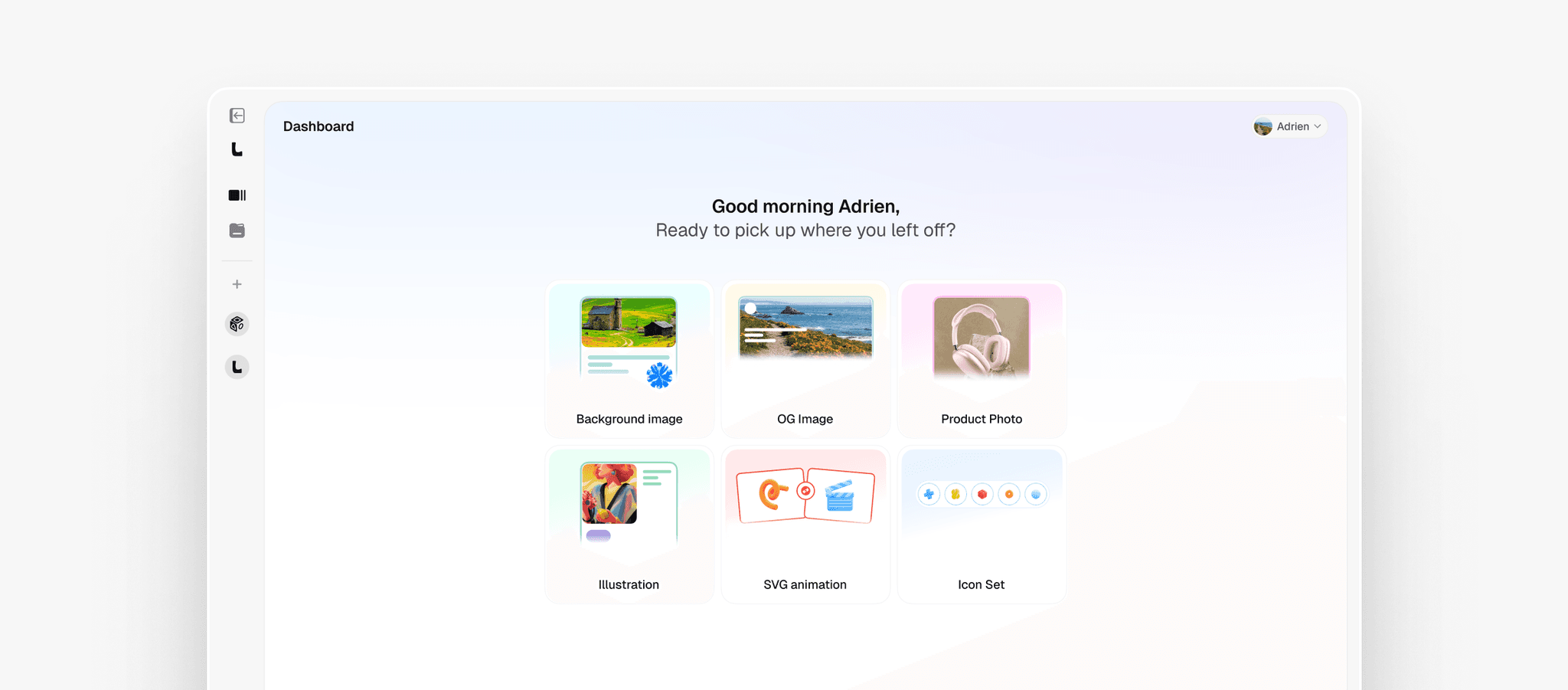
Go to limora.ai. Paste your site URL into the brand extractor and Limora pulls your logo, colors, and fonts automatically. No site yet? Add your Brand Kit manually - upload your logo, set your hex colors, pick your fonts. Every asset from here comes out on-brand.
- 2
Step 2
Add your product to Brand Storage
Open Brand Storage and upload your product photo. This is the source image every asset references, so use the cleanest shot you have. Even a phone photo on a plain background works.
- 3
Step 3
Generate the hero shot
Click Generate Assets and select Product Photo. Reference your uploaded product, then paste this and tweak the visual style on the left panel until it matches your brand:
PromptHero product shot of [product], centered on a seamless [brand color] backdrop, floating with a soft contact shadow, studio softbox lighting, crisp subtle reflection, minimal premium e-commerce look, ultra-sharp, 4k product photography
- 4
Step 4
Create the variations
Hit Reference on your hero shot and generate the other angles a store needs. Run these one at a time, showing each result full screen before the next:
Lifestyle / in-context
PromptSame [product] styled in a real [setting - e.g. sunlit marble kitchen, modern wood desk, minimalist bathroom shelf], natural window light, shallow depth of field, warm lifestyle e-commerce photography with on-brand color accents
Detail / macro
PromptExtreme close-up of [product] showing its texture and material, dramatic side lighting, dark moody background, premium macro product shot, ultra-detailed
Flat lay / set
PromptTop-down flat lay of [product] with a few complementary props on a [brand color] surface, evenly lit, editorial e-commerce styling, generous negative space
- 5
Step 5
Export
Export each image at full resolution. You now have a hero, a lifestyle shot, a detail macro, and a flat lay - everything a storefront needs.
Part 2 - Build the store with Claude
Four images and one prompt away from a live site.
- 6
Step 6
Upload and paste
Open a new chat in Claude, upload all four exported images, then paste the mega prompt below. Fill in the [brackets] with your brand.
The mega prompt
This is the one that does the heavy lifting. Copy it whole.
PromptYou are a senior product designer and front-end engineer. Build me a complete, premium single-product e-commerce website as one self-contained HTML file (inline CSS + JS, no external dependencies except Google Fonts). BRAND - Product: [product name + one-line description] - Brand colors: [primary hex], [accent hex], plus clean neutrals - Fonts: [heading font], [body font] - Tone: [premium / minimal / playful / luxury] IMAGES Use the images I uploaded. Image 1 is the hero shot, image 2 is lifestyle, image 3 is the detail macro, image 4 is the flat lay. Place each one where it fits best in the layout. SECTIONS (in order) 1. Sticky nav - logo left, links center (Shop, Details, Reviews), cart icon + Buy button right 2. Hero - large product image, bold headline, subhead, price, primary "Add to cart" and secondary "Learn more" 3. Trust bar - 4 short guarantees with icons (free shipping, 30-day returns, secure checkout, warranty) 4. Features - 3 columns, each with an image, a title, and a benefit line 5. Full-bleed lifestyle section with the lifestyle image and one emotive line 6. What's included / specs - clean two-column list 7. Reviews - 3 cards with star ratings, avatars, and real-sounding quotes 8. Final CTA - large, product image, price, add-to-cart, one urgency line 9. Footer - links, newsletter input, socials REQUIREMENTS - Fully responsive, mobile-first - Light AND dark mode with a toggle in the nav (respect prefers-color-scheme and persist the choice) - Real micro-interactions: hover states, smooth scroll, fade-up on scroll, and a working add-to-cart counter that updates the cart badge - Generous whitespace, strong type hierarchy, rounded corners, soft shadows - premium, never templated - No lorem ipsum - write real, on-brand copy for [product] - Accessible: semantic HTML, alt text, keyboard focus states Output the full HTML file. Make it look like a top studio designed it, not AI.
- 7
Step 7
Refine
Ask for changes in plain English: "make the hero taller", "switch to a warmer palette", "add a sticky buy bar on mobile", "more editorial spacing". When it's right, export the file or drop the code into Framer or your host.
That's the whole workflow
On-brand product photos in Limora, one mega prompt in Claude, a live premium store. Under 2 minutes, and nothing looks AI-generated.
Limora is live - try it free at https://limora.ai and start generating on-brand assets for your projects.